
Service Catalog
The Service Catalog is where your MSP's services and products live inside Inscora. Inscora pre-loads it for you when you start, and you maintain it from there: enable, disable, add, edit, or delete offers as your portfolio evolves. The catalog feeds three things: Deep Analysis (which recommends specific offers from your catalog when insurability scan results uncover gaps), the Coverage view that shows how well your portfolio maps to the 12 CIPScore control categories underwriters score, and the Summary PDF Export available on each client - so the report a Service Provider hands to a client or broker reflects the same offers and coverage you've curated here.
You'll find this page in the left sidebar under Organization > Catalog, alongside Settings, Integrations, and Usage.
Page Layout
The Service Catalog has two tabs:
Tab | What it's for |
|---|---|
Services & Products | The CRUD view. Browse offers grouped by vendor, toggle individual offers or whole vendors on and off, and use Create offer to add new services or products. |
Coverage | The insurability view. See your enabled offers mapped against the 12 CIPScore control categories, with a status (Strong, Partial, Gap) for each control and the underwriter context that explains why it matters. |
A small status panel sits below the tabs with running counts (vendors and enabled offers on the Services & Products tab; Strong / Partial / Gap counts and total controls tracked on the Coverage tab). The blue Create offer button is always in the top-right of the page, regardless of which tab you're on.
Services & Products Tab
The Services & Products tab lists every vendor in your catalog. Each MSP always has at least one vendor: itself (its own services and engagements). Beyond that, you'll see whichever third-party software vendors you resell or recommend - the exact list depends entirely on your portfolio.
Each vendor row shows the vendor name, an enable/disable toggle for the whole vendor, a count of enabled offers (e.g., 3 / 3 enabled), and a chevron to expand or collapse the vendor's individual offers.
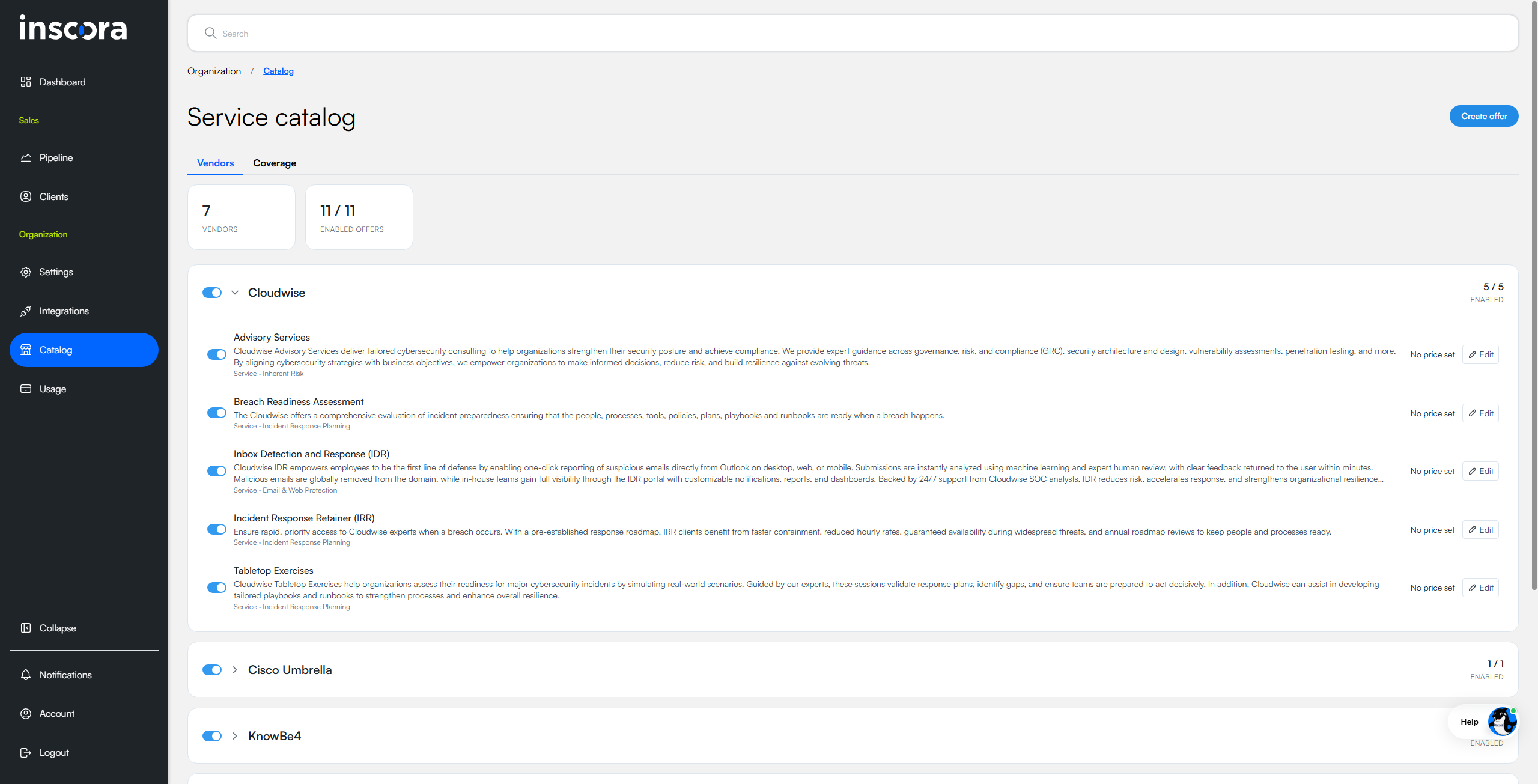
One vendor expanded to show its offers, each with its own toggle and Edit action. The exact vendor list depends on your portfolio.
Anatomy of an Offer Row
Click the chevron on a vendor to expand it. Each offer row shows:
- Toggle - enable or disable that single offer. A disabled offer no longer counts toward Coverage, won't be surfaced by Deep Analysis, and won't appear in the Summary PDF Export.
- Name and description - taken from the offer record.
- Type and category - shown as Service · Email & Web Protection or similar.
- Price status - the unit price, or No price set if you haven't filled it in yet.
- Edit - pencil icon that opens the offer modal.
Create a New Offer
- Click Create offer in the top-right of the page. The Create catalog offer modal opens with the Enabled toggle on by default.
- Fill in the offer details:
Field | What to enter |
|---|---|
Item type * | Service or Product. Services are recurring engagements (training, MDR, advisory). Products are licenses or software (e.g. licenses you resell to a client). |
Category * | One of the 12 CIPScore control categories. Pick the category the offer addresses; this is what determines where the offer appears on the Coverage tab. |
Name * | The offer's display name. |
Description * | What the offer does, in one or two sentences. Surfaced inside the catalog and used by Deep Analysis when recommending the offer. |
Vendor * | Pick the vendor that delivers the offer. Your own MSP is always available; pick a third-party vendor when you're reselling someone else's product. |
Pricing unit | Per month (a flat monthly charge), Per user (a monthly charge per user/seat), or One-time (a single, non-recurring charge such as a setup fee or one-off project). One-time offers are left out of recurring-revenue (MRR) projections. |
Price | What you charge the client. |
Cost | Your cost for the offer (used for margin calculations downstream). |
- Click Create offer. The modal closes and the new offer appears under the chosen vendor. If the vendor didn't exist before, it's created at the same time.
Edit or Delete an Offer
Click the Edit pencil on any offer row to open the Edit catalog offer modal. The fields are identical to Create. Two extra controls live at the bottom:
- Delete offer (red, left) - removes the offer from the catalog. Use with care; deletion is the right call when the offer was wrong or duplicated. To temporarily stop using an offer, prefer the Enabled toggle.
- Save changes (blue, right) - persists your edits.
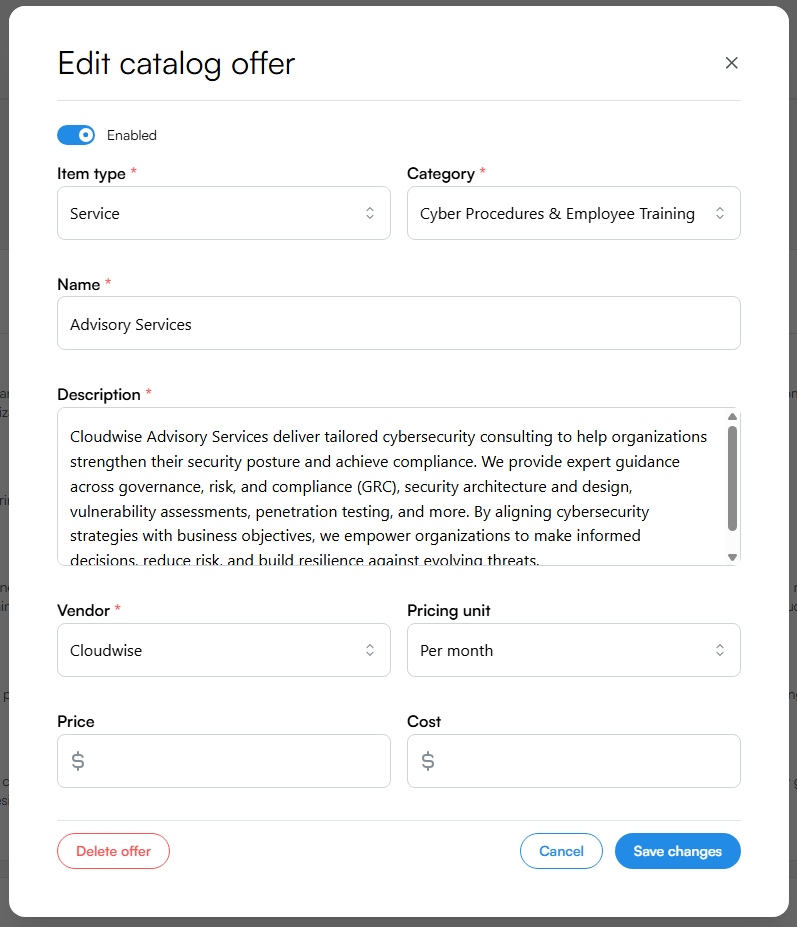
The Edit catalog offer modal. Same fields as Create, plus Delete offer in the bottom-left.
💡 Disable, don't delete. Toggling an offer off keeps the record but excludes it from Coverage, from Deep Analysis recommendations, and from the Summary PDF Export. Use the toggle for offers you've paused. Reserve Delete for offers that were created in error or are no longer part of your portfolio.
Coverage Tab
The Coverage tab takes the same offers and re-projects them against the 12 CIPScore control categories underwriters score. The status panel at the top shows running counts:
- 🟢 Strong - the control category has multiple enabled offers mapped to it.
- 🟡 Partial - one or two enabled offers map to the category.
- 🔴 Gap - no enabled offer maps to the category.
- Controls tracked - the total number of CIPScore categories on this view.
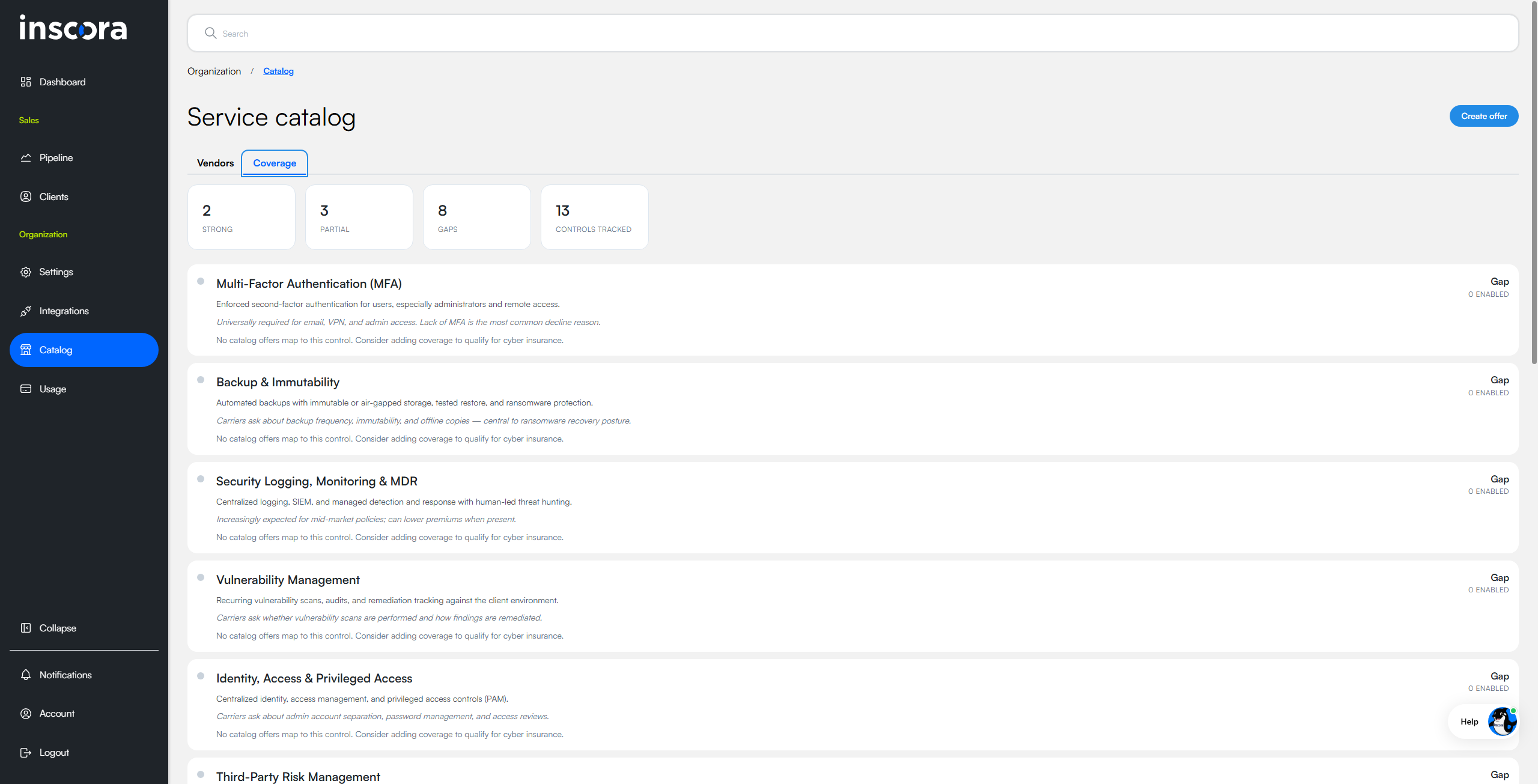
The Coverage tab. Each control card shows a description, the underwriter context, and the current status.
Anatomy of a Control Card
Each control on the Coverage tab is rendered as a card with five pieces of information:
Element | What it tells you |
|---|---|
Status dot | Color-coded indicator on the left of the card (gray for Gap, yellow for Partial, green for Strong). |
Control name | The CIPScore category name (e.g., Multi-Factor Authentication, Endpoint Detection & Response). For a deep dive on each, see Understanding the Cyber Insurability Posture Score. |
Description | What the control covers and what evidence underwriters expect. |
Underwriter context (italic) | Why the control matters from a carrier's point of view (e.g., "Lack of MFA is the most common decline reason"). |
Status badge and count | Top-right of the card: Strong, Partial, or Gap, plus the number of mapped enabled offers (e.g., 4 enabled). |
For controls in the Strong or Partial states, the card lists the specific offers that map to the control. For Gap controls, the footer reads "No catalog offers map to this control. Consider adding coverage to qualify for cyber insurance."
ℹ️ Use Coverage as a portfolio gap analysis. The Coverage tab is the fastest way to see where your service portfolio is thin against what underwriters expect. A row of Gap controls is a list of services to consider adding (or repositioning existing offers under) - not just for one client, but for every client you take to market.
How the Catalog Connects to the Rest of Inscora
- Deep Analysis uses your enabled catalog offers when generating remediation guidance. When a scan flags a gap (say, missing MFA), Deep Analysis pulls the offers in that category from your catalog and weaves them into the briefing the Service Provider sees. Disabled offers are skipped.
- CIPScore Detail is the canonical reference for the 12 control categories the catalog maps to. The Coverage tab and the CIPScore use the same set of categories, viewed from different angles: Coverage is your portfolio against those categories; CIPScore is each client's posture against those categories.
- Organization Settings is where you'll find related org-level configuration; the catalog itself lives under Catalog (this page) for editorial reasons - it changes more often than other org settings.