
Integrations
The Integrations page lets you connect Inscora to the other systems you already use to run your MSP business. Connect a system once and Inscora can pull in your client list, keep client details in sync, and feed posture data back as the catalog of connectors grows.
You'll find this page in the left sidebar under Organization, alongside Settings, Catalog, and Usage.
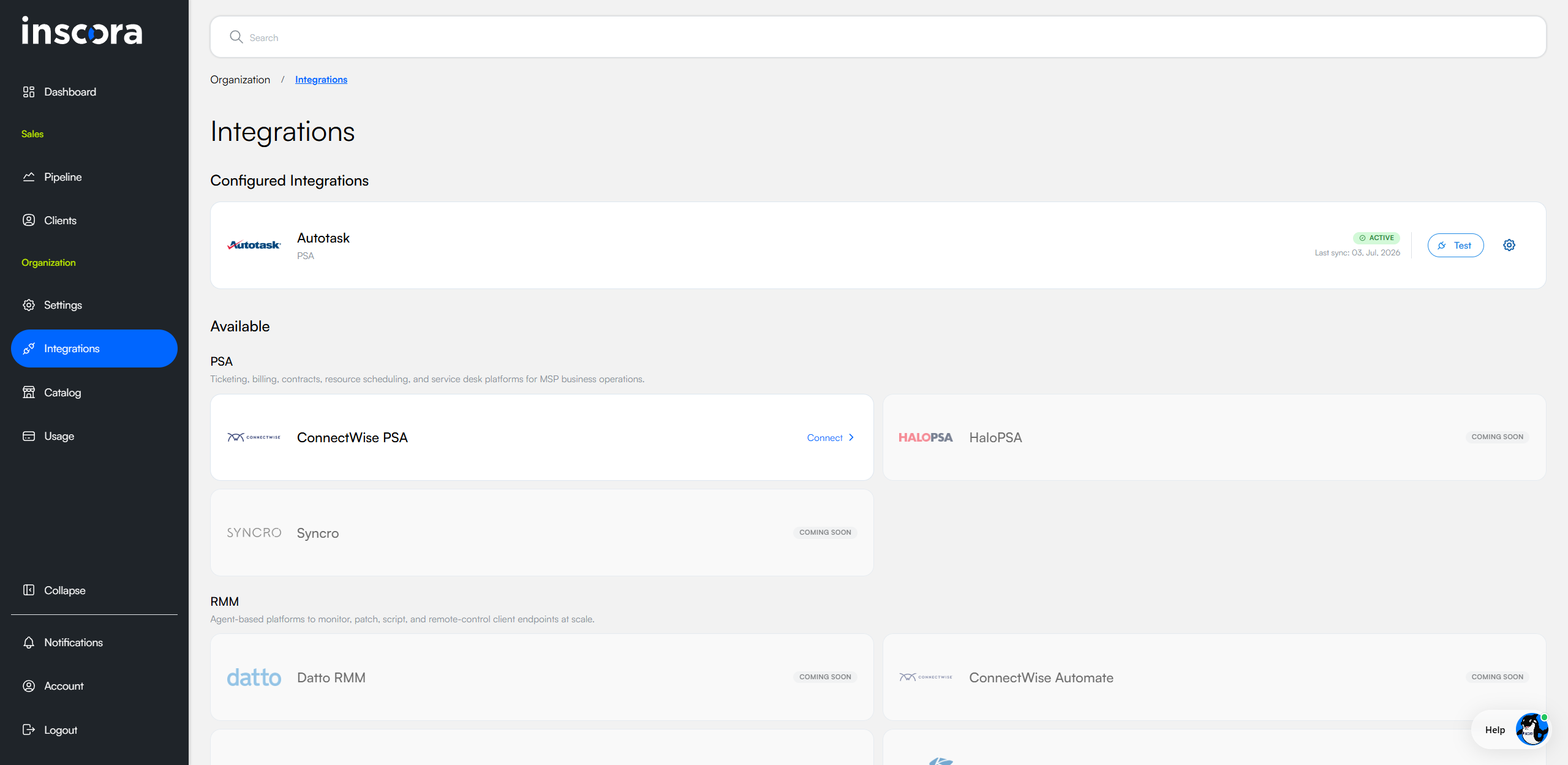
The Integrations page: Autotask connected, ConnectWise PSA available to connect, others marked COMING SOON.
Page Layout
The page is split into two sections.
Configured Integrations
Lists every integration you've already set up. Each row shows the platform's logo, name, category, a status badge, the last verification timestamp, a Test button to re-check the connection on demand, and a settings gear to edit credentials.
Available
Lists every integration Inscora supports or plans to support, grouped by category. Two categories are visible today:
- Professional Services Automation - ticketing, billing, contracts, resource scheduling, and service desk platforms for MSP business operations.
- Remote Monitoring & Management - agent-based platforms to monitor, patch, script, and remote-control client endpoints at scale.
Integration States
Each integration on the page is in one of three states:
State | What it means |
|---|---|
Active | The integration is configured and connected. A green ACTIVE badge appears on the card, and you can use the Test button to re-verify the connection at any time. The card shows in Configured Integrations. |
Available | The integration is supported and you can configure it now. The card shows a Connect › link in the Available list. Click it to enter your credentials. |
Coming Soon | The integration is on the roadmap but not yet available. The card is greyed out with a COMING SOON tag and is not clickable. |
What's Available Today
Professional Services Automation
Platform | Vendor | State |
|---|---|---|
Autotask PSA | Kaseya (Datto) | Available - credentials · setup |
ConnectWise PSA | ConnectWise | Available - credentials · setup |
NinjaOne PSA | NinjaOne | Coming Soon |
Remote Monitoring & Management
Platform | Vendor | State |
|---|---|---|
NinjaOne RMM | NinjaOne | Coming Soon |
ConnectWise RMM | ConnectWise | Coming Soon |
Kaseya VSA | Kaseya | Coming Soon |
Datto RMM | Kaseya (Datto) | Coming Soon |
What an Active Integration Looks Like
Once you've finished setup, the integration moves from Available into Configured Integrations at the top of the page. The card shows a green ACTIVE badge, the date and time the connection was last verified, a Test button, and a settings gear icon for editing credentials.
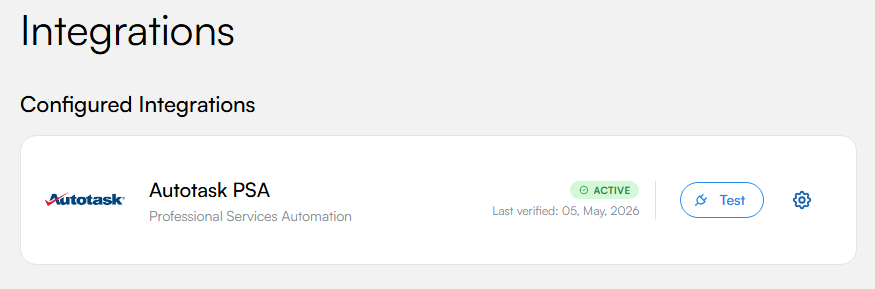
Autotask PSA shown as an active, configured integration.
💡 Use Test to verify a connection. The Test button on a configured integration runs an immediate connectivity check. Use it after rotating credentials, when you suspect an outage, or simply to confirm everything is healthy. The Last verified timestamp updates on success.
Where to Go Next
Two PSA integrations are available to configure today: Autotask PSA and ConnectWise PSA. Setup takes a few minutes and unlocks importing your existing client list directly into Inscora.
Autotask PSA
- Get Autotask API credentials - create the API user inside Autotask.
- Connect Autotask PSA to Inscora - enter the credentials and verify.
ConnectWise PSA
- Get ConnectWise API credentials - create the API Member and key inside ConnectWise.
- Connect ConnectWise PSA to Inscora - enter the credentials and verify.
Once a PSA is connected, import clients in bulk from the Clients page.
ℹ️ More integrations are coming. The PSA and RMM platforms marked COMING SOON are on the roadmap. If your MSP relies on one of them and you want early access or to influence priority, contact Inscora support.