
Import Clients
Inscora gives you two paths to add clients. The primary one is Import Clients - bulk import from a connected PSA (e.g. Autotask) or from a CSV file. If you only need to add one client by hand, use the Create Client option tucked behind the same button.
The Import Clients Button
On the Clients page (open Clients in the left sidebar), in the top-right of the client list, you'll see a blue Import Clients split button with a small dropdown arrow. Click the main button to open the Import panel; click the arrow for the dropdown menu.
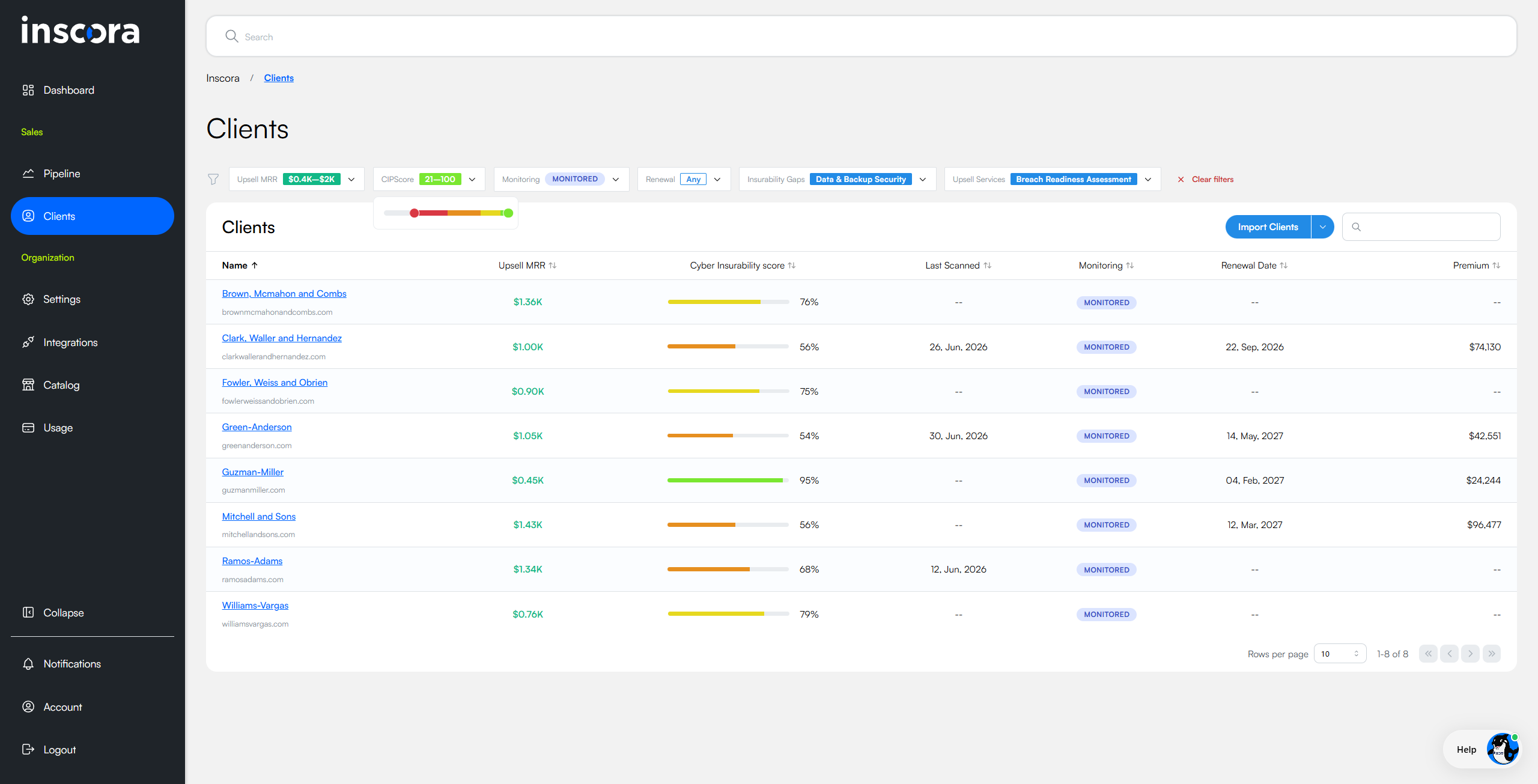
The blue Import Clients split button on the Clients page.
The dropdown contains a single secondary option, + Create Client, which opens the manual one-off creation dialog (the same flow that used to live behind the green Create Client button).
Bulk Import: The Import Clients Panel
Clicking the main Import Clients button slides a panel in from the right. The panel has one tab for each connected PSA plus a CSV tab. Pick whichever source you want to import from.
PSA Tab: Autotask as an example
Each connected PSA gets its own tab in the Import Clients panel. The walkthrough below uses Autotask as a worked example (configured via the Autotask PSA integration); the same layout and flow apply to every PSA tab. Inscora pulls the PSA's client list, classifies each entry against what's already in Inscora, and lets you import in one go.
At the top of the tab, three status cards summarize what Inscora found:
Card | What it counts |
|---|---|
CREATE | New clients. Inscora will create them from the PSA row and keep them synced from the PSA going forward. |
SYNC | Clients already in Inscora that are linked to a matching PSA record. Inscora will refresh their details from the PSA on import and on every subsequent sync. |
WARNING | Inscora can create the client from this PSA row, but the PSA record is missing one or more fields Inscora needs to keep it synced afterwards - typically the website, or a tracking identifier that ties the PSA record to its Inscora counterpart. The client gets added on import, but won't pick up future updates from the PSA until you fill in the missing field on the PSA side. |
Below the cards, a search bar and a sortable table list every client from the PSA side by side with its Inscora match and the action that will be applied:
Column | What it shows |
|---|---|
Source | The client as it appears in the connected PSA (name and website). |
Inscora | The matching client in Inscora, or empty if it's new. |
Action | What will happen on import: CREATE (new client, kept synced from the PSA from now on), SYNC (already in Inscora and linked - refresh details from the PSA), or WARNING (created from this row, but ongoing sync is blocked until you fill in a missing PSA field - see the WARNING card description above). |
Monitor Insurability | A per-row toggle, on by default, that decides whether Inscora monitors the client: a monitored client gets an insurability scan on import and is then re-scanned automatically on the recurring schedule. The toggle in the column header switches every row at once. It does not control whether the client is imported - every row in the list is added to Inscora either way - only whether Inscora runs insurability scans on it. |
The Monitor Insurability toggle on each row is what drives scanning. Leave it on (the default) for any client whose cyber insurability you want to track: Inscora runs an insurability scan on the client on import and keeps re-scanning it on the recurring schedule. Turn it off for clients you want to import and keep synced from the PSA but not scan yet - for example, dormant accounts. An un-monitored client still lands in Inscora and still refreshes from the PSA; Inscora just doesn't scan it until you switch monitoring on. The toggle in the column header flips the whole list at once.
ℹ️ Monitoring is one-way from this screen. You can switch monitoring on for a client that was imported without it - re-run Import Clients and toggle the row on. You can't switch it back off here: once a client is monitored it stays monitored, and its row shows the toggle on and locked on the next import.
Use the search bar to narrow a long list and the column headers to sort. Toggle states stick as you search, so you can search for a subset (e.g. "all clients whose name starts with Acme"), set their monitoring, clear the search, and your choices hold - letting you line up exactly which clients to monitor before clicking Import in the top-right of the panel.
⚠️ Import has immediate consequences. Every client you import counts against your platform license. Every client imported with Monitor Insurability on is also scanned right away (Inscora kicks off domain discovery and an insurability scan as soon as the row is created) and then re-scanned on the recurring schedule; clients imported with monitoring off are added and kept in sync but not scanned. Bulk imports can move your license usage and your scan queue meaningfully - check the CREATE / SYNC counts and the Monitor Insurability toggles before you click Import.
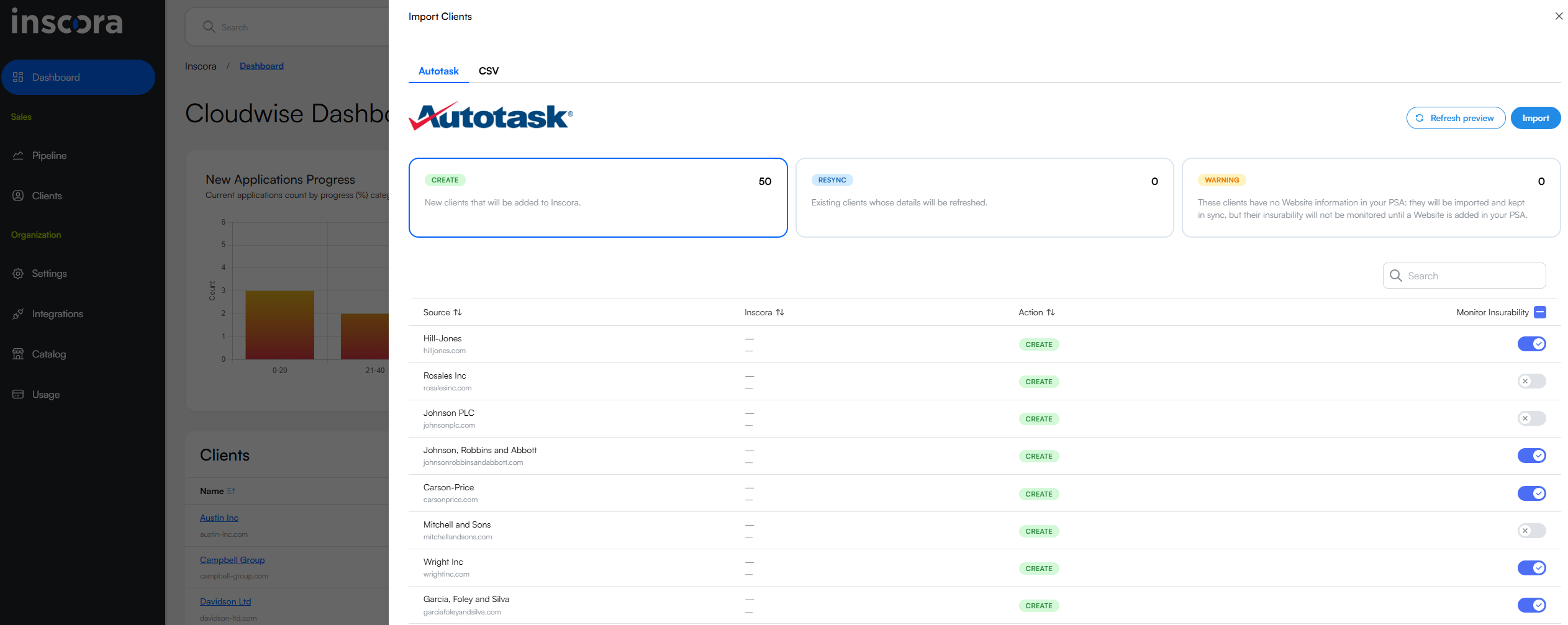
The Import Clients preview (Autotask): CREATE / SYNC / WARNING cards on top, and the Monitor Insurability column with a per-row toggle (on by default) - leave it on to scan and monitor a client, switch it off to import and sync without scanning.
ℹ️ What to do about WARNING rows. WARNING rows still get created on import - the client lands in Inscora. The flag is about what happens after. The most common cause is a missing website in the PSA record: without a website Inscora has nothing to scan, so the client is imported and kept in sync but its insurability can't be monitored until a website is added. A missing tracking identifier (which links the PSA record to its Inscora counterpart) blocks ongoing PSA sync the same way. To fix either, open the client in your PSA, fill in the missing field, and re-run Import Clients - the next pass will pick the row up as SYNC and, once a website is present, let you turn on Monitor Insurability.
CSV Tab
If you don't have a PSA connected (or your client list lives elsewhere), use the CSV tab to upload a CSV file.
Start from the template. The tab has a Download Import Template button that gives you inscora-import-template.csv, already carrying the correct header row. Fill in your clients underneath and upload it back. Keep the header row exactly as it comes: the importer matches columns by name.
The template covers rather more than the minimum, so you can seed a lot in one pass:
Column group | Columns |
|---|---|
The client |
|
Address |
|
Contact |
|
Insurance |
|
ℹ️ The two that matter most.account_nameandwebsiteare what Inscora works from: the website is where discovery and the insurability scan begin, so a wrong domain produces a score for the wrong company. Everything else is useful context you can also fill in later from the client page.
To upload, drag the file into the drop zone or click to browse. The file must not exceed 5 MB. Click Import once it's loaded.
Manual: Create a Single Client
For one-off additions (e.g., a brand new prospect that just signed), use the + Create Client option in the dropdown.
- Click the dropdown arrow on the Import Clients button, then + Create Client.
- Fill in the Create Client form. A dialog appears with two fields:
Field | Description |
|---|---|
Organization Name | Your client's company name (e.g., "Acme Corp"). |
Website | Your client's website domain (e.g., "acmecorp.com"). Inscora uses this domain as the starting point for discovery and scanning. |
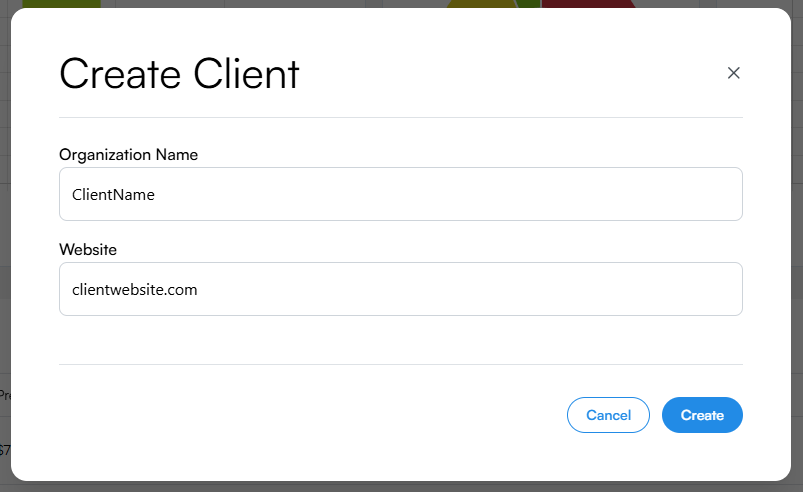
The Create Client dialog. Two fields, that's it.
- Click Create. Inscora navigates you to the new client's page and automatically launches the first insurability scan in the background.
ℹ️ What happens after a client is added? Whether you imported in bulk or created one manually, Inscora kicks off domain discovery and an insurability scan from the website you provided. It finds subdomains and related domains, then evaluates the client's cyber insurability posture. No manual action needed. Results appear on each client's page as scans complete.
What You'll See: The Client Page
After creation, you land on a client's page. This is where you'll find everything about that client: CIPScore, insurance applications, assigned providers, users. The page has header cards at the top and tabbed detail sections below.
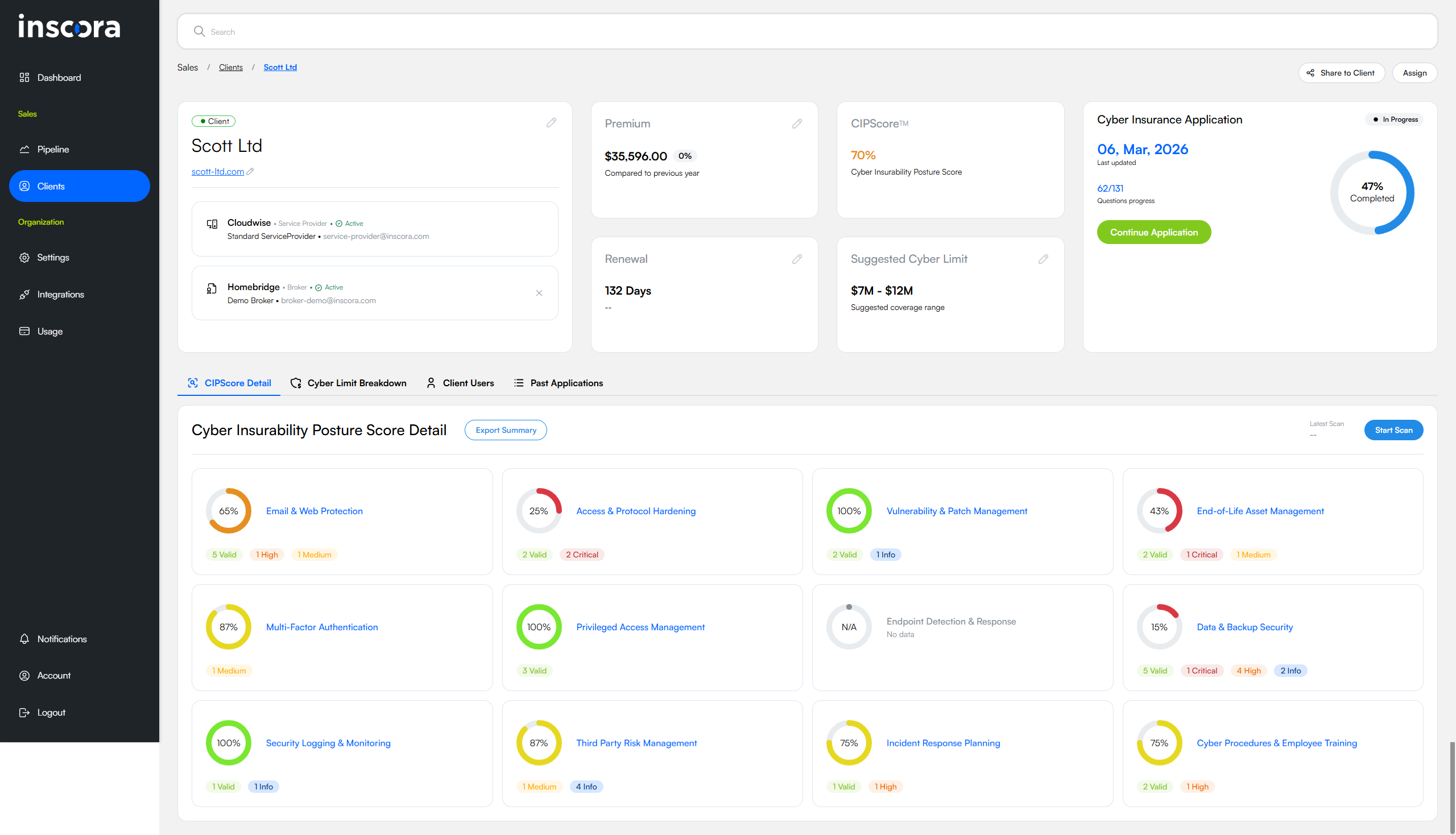
A client's page showing insurability scan results, service provider info, premium tracking, and CIPScore breakdown.
Client Info & Assignments
The upper-left block shows the client's name and website. Click the pencil icon next to the website to open the Digital Asset Manager, which lists all the domains and IPs Inscora discovered. You can add or remove entries here if automatic discovery missed something the client owns.
Below the client info you'll see the assigned Service Provider and assigned Broker. For new clients, no broker is assigned yet. You'll assign one when you complete an assessment. For best results, use Inscora's Partner Broker - they specialize in cyber insurance and have access to the broadest range of carriers and products.
Premium & Renewal
The Premium card shows the client's known cyber insurance premium (editable), so you can track premiums over time. The Renewal card below it shows the policy renewal date. Together they give you a view of each client's insurance lifecycle.
CIPScore
The CIPScore card shows the overall Cyber Insurability Posture Score, a single percentage built from 12 control categories. From the insurability scan alone, only some categories will have scores. The rest require client input through the cyber insurability assessment (a guided questionnaire you can drive from the platform).
Suggested Cyber Limit [BETA]
This beta feature helps determine the right coverage amount for a client. It uses the client's industry and CIPScore to compute a probable loss scenario: an estimated dollar amount the client might lose in a cyber incident, broken down by risk category. Inscora then suggests a cyber policy limit.
Cyber Insurance Readiness
The last header block. It tracks the whole workflow of getting a client ready for cyber insurance, from continuous monitoring onward. Each step shows whether it's done, in progress, or waiting, and clicking one takes you straight into it. See The Cyber Insurance Readiness Workflow.
Detail Tabs
Below the header cards, four tabs let you dig deeper:
Tab | Description |
|---|---|
CIPScore Detail | Insurability scan results across all 12 categories, with individual scores and validations. See Understanding the Cyber Insurability Posture Score. Open Deep Analysis on any validation to get a full AI-generated briefing. |
Cyber Limit Breakdown | Probable loss scenario and recommended coverage limit (relates to the Suggested Cyber Limit card above). |
Client Users | Manage the individuals from this client's organization who have access to the platform. |
Past Applications | History of previous cyber insurability assessments and cyber insurance applications submitted for this client. |
Edit Client Organization
To update a client's details, click the pencil icon at the top-right corner of the client card. This opens the Edit Client Organization panel with the following fields:
Field | Description |
|---|---|
Organization Name | The client's company name. This is what appears in the client list and throughout the platform. |
Website | The client's primary domain. The blue pencil icon next to it opens the Digital Asset Manager, where you can manage all domains and IPs included in the insurability scan. |
Address | Street address for the client organization. |
Country | The client's country. |
Province / State | Province or state, depending on the country. |
City | City name. |
Zip Code | Postal or zip code. |
Phone Number | Primary contact number for the client organization. |
Alternate Phone Number | Secondary contact number. |
Communication Language | Controls the language used for exported reports such as the Export Summary (English or French). Defaults to the language of the user who created the client, but can be changed at any time. |
💡 Changing the report language. If you need an Export Summary in a different language, change the Communication Language here first, then generate the export. The report will be produced in whichever language is set at the time of export.
Archiving a Client
If a client is no longer active, because they've left, the engagement ended, or the record was created in error, you can archive them from the client page. Archiving removes the client from your day-to-day views (Dashboard list, search, analytics widgets) without losing the underlying data.
Look for the Archive action on the client page. The same action is available on prospect pages from Prospecting, so you can use it to drop dormant prospects out of your active list as well.
⚠️ Archive vs. delete. Archiving is the way to take a client or prospect out of your active list. If you need a record permanently removed (e.g. for data-retention reasons), contact Inscora support.