
Create & Finalize an Assessment
The cyber insurability assessment brings together your client's insurability scan results and their answers to carrier questionnaires into a single, scored application a broker can take to market. It fills in the categories the scan alone cannot evaluate: the internal controls nobody can see from the outside.
ℹ️ Start from the readiness card. The Cyber Insurance Readiness Workflow on the client page is the way in. It decides which questionnaire you're working on, tracks how far along each one is, and points at what to do next. This page is the detail behind two of its steps: what happens once you open Cyber Insurability Assessment or Insurance Application.
Starting an Assessment
Open the client and click Cyber Insurability Assessment or Insurance Application on the readiness card, depending on which one you're working on. Inscora takes the shortest route from there: straight into an open application if one already carries that type, and otherwise into the selection flow below. The workflow page covers all three routes, and the prompt that offers a client's previously completed answers as a starting point.
The Select Questionnaire modal is where you choose which questionnaires your client will complete. Because the step you clicked already settled the questionnaire type and the region, the only filter left to set is Language.
Cyber Insurability Assessments vs. Insurance Applications
There are two kinds of questionnaire, and which one you're working on is decided by the readiness step you opened rather than by anything in the modal:
Type | What it is | When to use |
|---|---|---|
Cyber Insurability | Inscora's own standardized cyber assessment. Focuses on the security controls that matter most for insurability. | Best starting point for most clients. Use this to establish a baseline CIPScore before involving a broker or carrier. |
Insurance Applications | Actual application forms from insurance carriers (Beazley, BOXX, CFC, Chubb, CNA, Coalition, etc.). | Use when the client is ready to apply with a specific carrier, or when you want to pre-fill carrier-specific questions alongside the cyber assessment. |
One application can carry both kinds at once, and that hybrid is common: the client answers Inscora's cyber insurability assessment and a carrier's application form in a single pass, with the questions the two share answered only once. Each type is then completed on its own schedule. See One Application, Two Questionnaire Types.
Selecting Carriers and Questionnaires
Below the language selector, the modal lists available carriers. Each carrier may offer multiple questionnaires. Click a carrier to expand its list and select the ones you want.
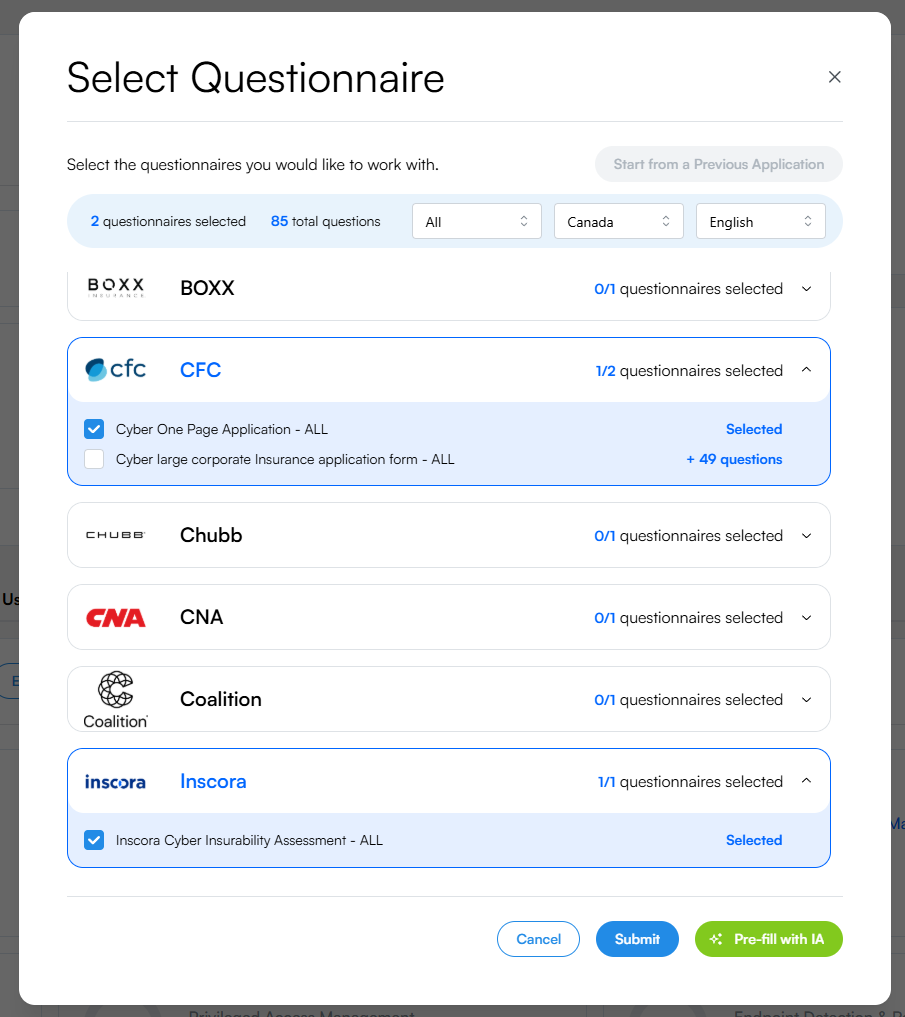
Each carrier can have multiple questionnaires. The "+49 questions" label shows how many new questions each additional selection adds.
💡 Question deduplication. When you select multiple questionnaires, Inscora automatically deduplicates overlapping questions. If two carriers ask the same thing (e.g., "Do you enforce MFA for remote access?"), your client only answers it once. The modal shows "+X questions" next to additional selections to indicate how many new questions that questionnaire adds beyond what's already covered.
A counter at the top of the modal shows the total number of questions across all selected questionnaires (after deduplication).
ℹ️ Custom questionnaires. If your organization has created custom cyber assessment forms, they also appear in this list. Custom questionnaires let you bring your own evaluation criteria into the platform alongside carrier forms.
Start Empty vs. Pre-fill with AI
Once you've selected your questionnaires, two buttons at the bottom of the modal decide how the application begins:
Option | What it does |
|---|---|
Start Empty | Creates the application without AI pre-filling. All questions start unanswered, unless you carried a previous round's answers across on the way in. |
Pre-fill with AI | Creates the application and pre-populates answers using data Inscora already has about the client, starting with the most recent scan. Questions about email security (DMARC, SPF, DKIM), end-of-life software, open ports, and similar topics that the insurability scan already evaluated will be filled in for you. A scan needs to have run before this option is available. |
Pre-filling saves time, especially for questions where existing data directly maps to what the carrier is asking. Pre-filled answers are always flagged for your review before they count - see below.
Reviewing and Accepting AI Pre-filled Answers
When you choose Pre-fill with AI, Inscora doesn't drop the answers in silently - each one is flagged so you can review it before it feeds the score. In the answering view, every AI-suggested field is highlighted and carries a Pre-filled with AI badge, with the suggested answer already in place.
- Spot the AI answers. Pre-filled fields stand out with a highlight and a Pre-filled with AI badge in the corner.
- Accept it as-is. Hover the badge and it turns into an Accept action. Click it to confirm the answer; the highlight clears and the answer is locked in as reviewed.
- Or edit it. If the suggestion isn't quite right, change the answer inline. Editing a field counts as reviewing it and saves normally.
Reviewing pre-filled answers this way keeps you in control: the AI gets your client most of the way there, and you confirm or correct each answer before it feeds the CIPScore and the final application.
Answers carried over from a client's earlier application are flagged the same way, with a grey Previous answer badge instead of the blue AI one, so you can tell at a glance what came from this client's own history and what Inscora suggested. Both accept the same way. You can also accept either kind from the question's details drawer, where the button names the source it is accepting.
Answering the Questions
After submitting, you're taken to the question-answering view where you (or your client) work through the application. This interface has its own set of features and navigation tools. See Answering Questions for a full walkthrough: severity badges, section navigation, the Explain feature on questions, comments, and viewing the original carrier wording.
How Answers Feed the CIPScore
The CIPScore draws from two main data sources (with a third on the way):
- Automated insurability scan - evaluates internet-facing assets.
- Questionnaire answers - evaluates internal controls that the insurability scan can't see (MFA policies, incident response plans, backup procedures, etc.).
- Internal connectors (coming soon) - will pull data directly from security tools like endpoint protection platforms and identity providers.
As your client answers questions, each response is evaluated and assigned a severity badge (Critical, High, Medium, Low, Valid, or Info). These scores feed into the relevant CIPScore category in real time. Categories that previously showed "N/A" (because they need input from the client or from you as a Service Provider) will start populating as answers come in.
You can see this on the CIPScore detail page: each category now has two tabs, Cyber Insurability Scan and Application Answers. The severity counts at the top of each category are the combined totals from both sources.
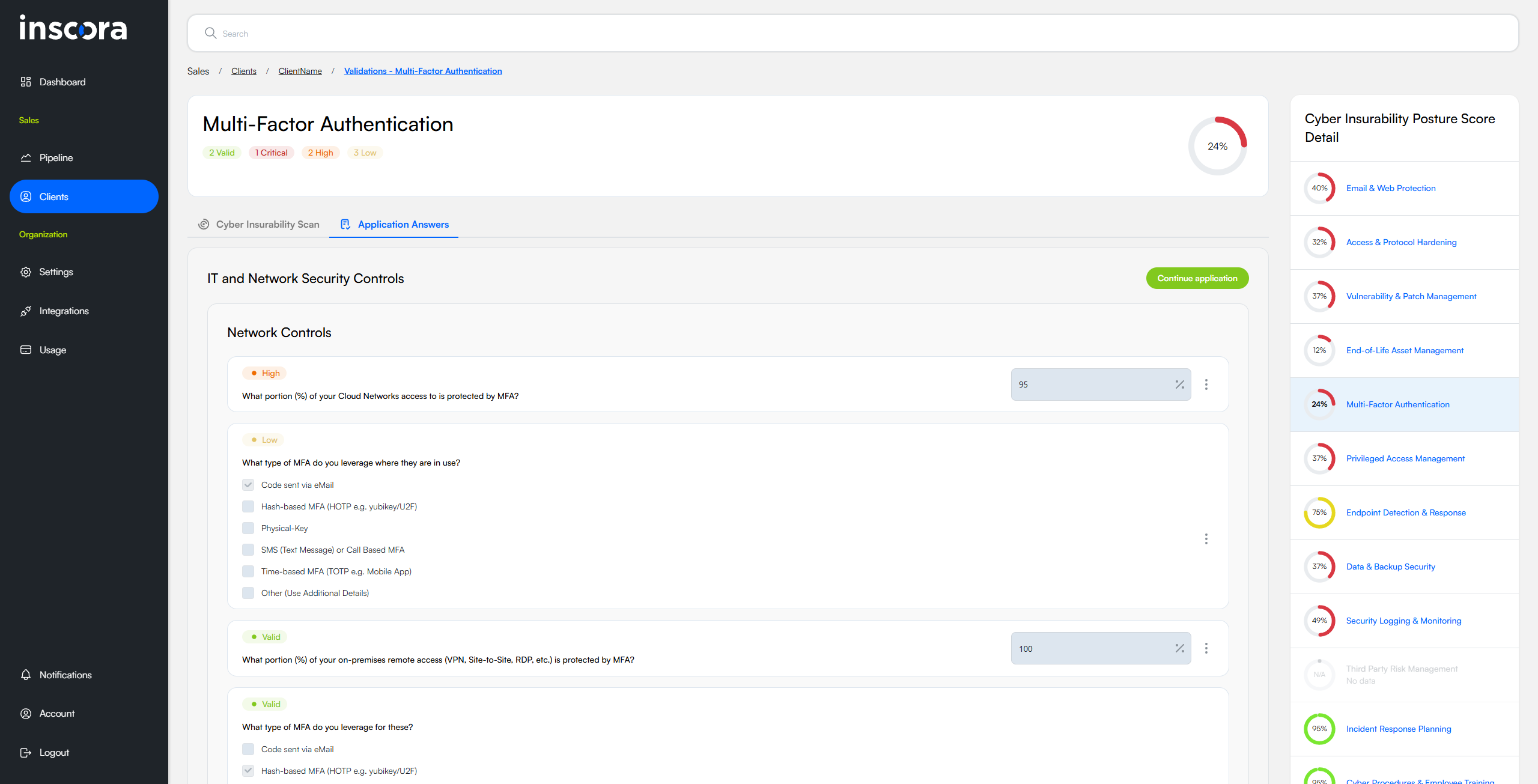
Each CIPScore category shows insurability scan results and application answers in separate tabs. Severity counts at the top combine both.
ℹ️ Read-only in the CIPScore view. The Application Answers tab in the CIPScore detail view is read-only. It shows you what the client answered and how it was scored, but you can't edit answers from here. To make changes, click the Continue Application button to return to the questionnaire.
Completing the Application
When the client's answers are in, complete the application from the progress panel. A PDF report is generated with all the answers, formatted for broker and carrier review.
Completing the application generates the PDF report the broker works from, and the Export Application modal opens so you can hand it over. If the client doesn't have a broker yet, you're asked to assign one first and the export follows. From there, the next thing to do is whichever step is still outstanding on the Cyber Insurance Readiness Workflow.
ℹ️ One application can carry both questionnaire types. When the cyber insurability assessment and the insurance application sit on the same form, you can complete each one as it's finished instead of waiting for both. Answers are shared between them: whichever you work on first, every question the two have in common is already answered in the other. Nobody fills in the same thing twice. See The Cyber Insurance Readiness Workflow.
Assigning a Broker
Service Providers don't sell insurance directly. They work with brokers who access the insurance markets on the client's behalf. The Assign Broker modal gives you these options:
Option | What happens |
|---|---|
Assign Inscora's Partner Broker | Assigns one of Inscora's partner brokers who specialize in cyber insurance. A country selector lets you pick the right market. This is the recommended option (see below). |
Invite the Client's Broker | If the client already has a broker, you can invite them to the platform with limited access to this client's data. |
Assign my preferred broker | Assigns the broker your organization has set as its default. Greyed out until you set one in Organization Settings. |
I will select later | Skips broker assignment for now. The application is saved as complete and you can assign a broker at any time from the client page. |
Quoting a US Client in the Platform
Choose Assign Inscora's Partner Broker and set the country to United States. The option relabels itself to Instant Cyber Insurance Quote and turns gold, and the copy changes to offer an instant quote through Inscora's partner network. Instead of handing the application to a broker and waiting, quotes can be pulled for the client without leaving the platform.
Starting it assigns the partner broker and opens the quoting experience in a window over the client page. Once a client is set up this way, a Get Quote button stays on their broker tile so you can return to it.
ℹ️ Your client sees the quotes, not you. You can start the process, but the quotes are your client's to review, and they sign in to their own portal to see them. You aren't their broker, and the decision to buy is theirs. Inscora's partner broker is there to help them make an informed one.
⚠️ Three things have to be in place first. The client has to have been invited to the platform, so they have a login and an e-mail address on file, since they're the one who views the quotes. Their organization also needs a complete mailing address and a phone number. If anything is missing, Inscora opens the client's edit panel with the gaps highlighted instead of starting the quote.
ℹ️ Canadian clients follow the broker route. In-platform quoting is currently offered for US clients. For everyone else, assign the partner broker as usual: they take the application to market on the client's behalf.
💡 Why use Inscora's Partner Broker? Inscora partners with brokers who specialize exclusively in cyber insurance. These are not generalist brokers who happen to offer a cyber line - they work in cyber insurance full-time, across every major carrier and market. This matters for three reasons:
Advantage | What it means for your client |
|---|---|
Broadest product access | Inscora's partner brokers have relationships with the widest range of cyber insurance carriers. More options means better pricing and coverage terms tailored to your client's specific risk profile. |
CIPScore fluency | They understand the technical details behind each CIPScore category and know how to present insurability scan results to underwriters in a way that gets the best terms. Nothing gets lost in translation between the assessment data and the insurance submission. |
Cyber-specific expertise | A generalist broker may not fully understand the difference between a DMARC validation and an open RDP port. Inscora's partners do, and they can advise your client on which gaps to close for better coverage and lower premiums. |
Even if your client already works with an insurance broker, consider using Inscora's Partner Broker for the cyber line. A broker who lives and breathes cyber insurance will almost always find better-fit coverage than a generalist handling cyber as one of many lines. Your client's existing broker can continue managing their other policies.
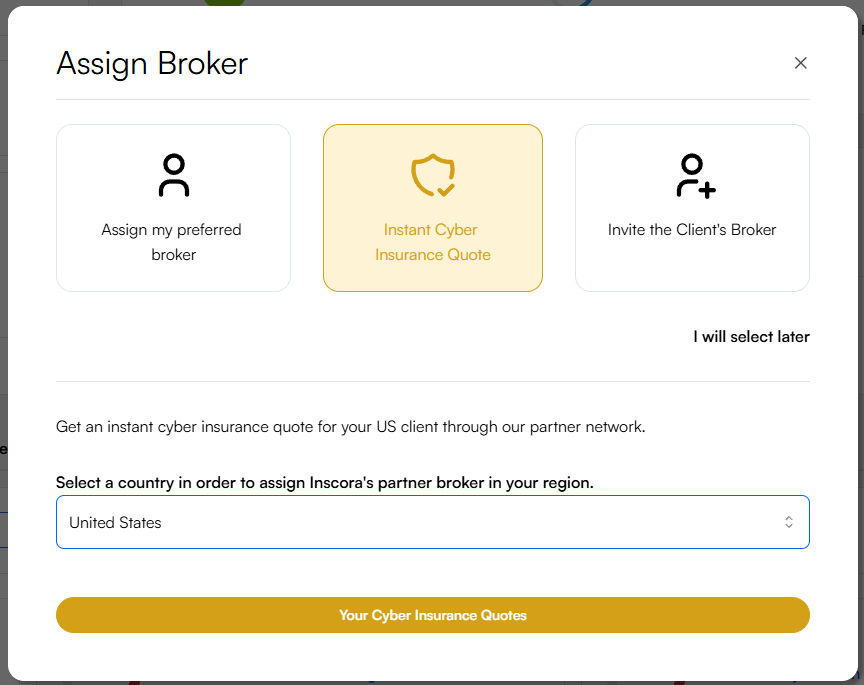
With the country set to United States, the partner broker option becomes an instant quote.
Once a broker is assigned, they receive a notification and the client appears in their broker portal with full visibility into the assessment answers. You can unassign a broker at any time by clicking the x icon next to their name on the client page.
Past Applications
Completed applications appear in the Past Applications tab on the client page. Each entry shows the carrier, last update date, status, and three actions:
Action | What it does |
|---|---|
View | Opens the completed application in read-only mode so you can review all answers and scores. |
Export | Downloads the application as a PDF report. |
Edit | Starts a new application from this one's answers, using the same questionnaires and language. The completed application itself is left untouched as the record of what was submitted. |
ℹ️ Editing doesn't reopen the old application. A completed round stays exactly as it was submitted. Edit gives you a fresh application seeded from it, which is what you want for a correction or a renewal. A client can hold only one open application at a time, so finish or cancel the current one first.

Past applications are always accessible for review, export, or starting a new application from.
Starting from a Previous Application
When a client already has a completed application on file, Inscora offers those answers as a starting point whenever you begin a new one, before you pick questionnaires. This is the renewal path: the client starts from their last round and updates only what has changed, instead of answering everything again.
See Starting from Previously Completed Answers for the full flow.
💡 Renewals made easy. Encourage clients to start from their previous answers at renewal time. Because Inscora keeps every answer in the platform, nothing depends on finding last year's PDF in an e-mail thread.
Edit Carriers
Changed your mind about which questionnaires to include? While working on an application, click the Edit Carriers button to re-open the Select Questionnaire modal. You can add or remove carrier questionnaires at any time without losing the answers you've already provided.