
ConnectWise - Get API Credentials
Before you can connect ConnectWise PSA (ConnectWise Manage) to Inscora, you need a ConnectWise API Member with an API key that Inscora can use to authenticate. This page walks through creating that member and its key inside ConnectWise. Once you have the values in hand, head to Connect ConnectWise PSA to Inscora to enter them.
ℹ️ Who can do this. Creating a security role and an API Member requires a ConnectWise account with admin access to System settings (Security Roles and Members). If that's not you, send these instructions to your ConnectWise admin.
What You'll End Up With
Four values to bring back to Inscora:
- Site URL: the address of your ConnectWise instance (for example
https://na.myconnectwise.net). Cloud regions differ, and on-premise instances use your own hostname.
- Company ID: the identifier you type when you log in to ConnectWise (your company's short name), not your full company name.
- Public Key: generated when you create the API key on the member.
- Private Key: generated alongside the Public Key. ConnectWise shows it only once, so copy it right away.
💡 Use a dedicated API Member for Inscora. Create a separate API Member just for the Inscora integration rather than reusing a person's login. That way you can audit Inscora's API activity on its own, rotate the key independently, and disable the integration cleanly without affecting other tools that talk to ConnectWise.
Step-by-Step in ConnectWise
- Open Security Roles. In ConnectWise, go to System › Security Roles.
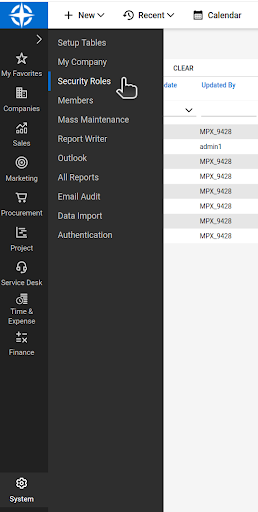
System › Security Roles.
- Create a new role. Click New Item, then give the role a Role ID you'll recognize, such as
Inscora API.
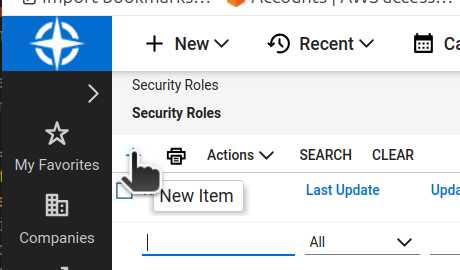
Add a new security role.
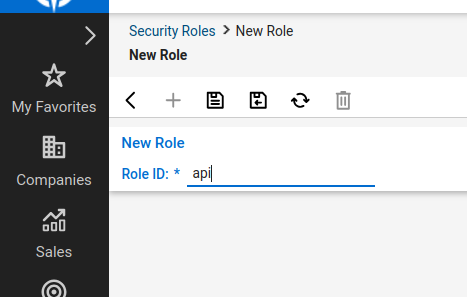
Name the role in the Role ID field.
- Grant read access to companies. In the role's security modules, find Companies › Company Maintenance and set its Inquire Level to All, then Save. This is read access only. Inscora uses it to pull your company list and needs nothing more.
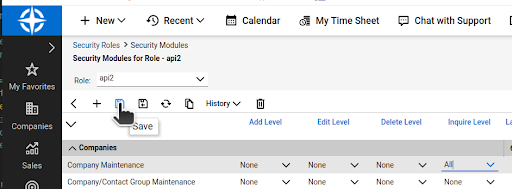
Company Maintenance with Inquire Level set to All.
- Open API Members. Go to System › Members, switch to the API Members tab, and click New Item.
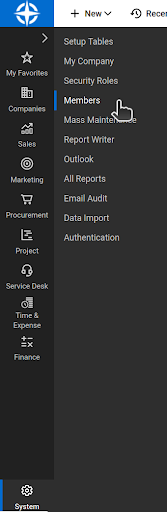
System › Members.
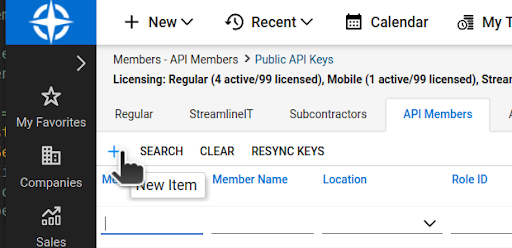
The API Members tab. Add a new API member.
- Create the API Member. Fill in a Member ID and Member Name you'll recognize (for example
inscora api), set the Role ID to the role you created, choose a Location, and Save.
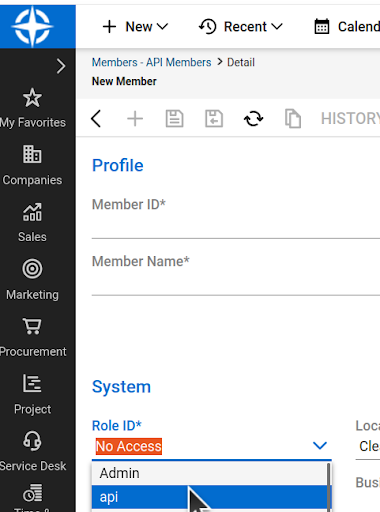
Set the Role ID to the role from step 3.
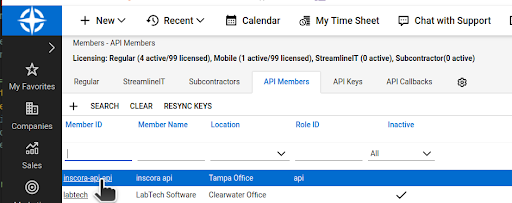
The saved API member in the list.
- Generate the API key. Open the API Member, go to its API Keys tab, click New Item, enter a Description (for example
inscora key), and Save. ConnectWise generates a Public Key and a Private Key. Copy both now: as the on-screen note says, the Private Key is only shown at creation time and cannot be retrieved later.
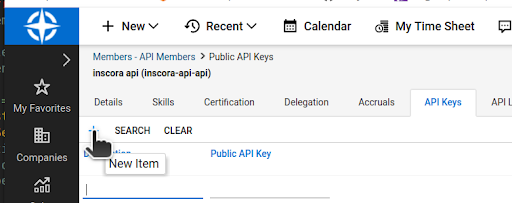
Add a new key on the member's API Keys tab.
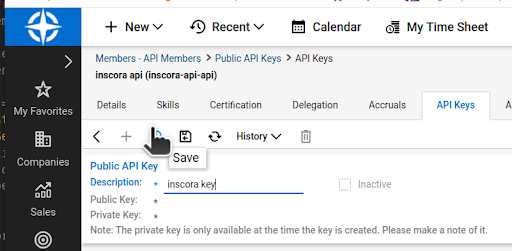
The generated Public and Private Keys. Copy the Private Key immediately.
- Note your Company ID and Site URL. Your Company ID is the value you enter on the ConnectWise login screen. Your Site URL is the address in your browser when you use ConnectWise (for example
https://na.myconnectwise.netfor a North America cloud instance). You'll need both in Inscora.
⚠️ Copy the Private Key before you leave the page. ConnectWise shows the Private Key only once, at the moment the key is created. If you navigate away without copying it, there is no way to reveal it later. You'll have to create a new API key and use the new pair.
What You Need to Bring Back
You should now have four values saved somewhere safe:
ConnectWise value | Inscora field |
|---|---|
Site URL (your instance address) | Site URL |
Company ID (login company) | Company ID |
Public Key (from the API key) | Public Key |
Private Key (from the API key) | Private Key |
Lost the Private Key?
If you didn't copy the Private Key before leaving the page, ConnectWise hides it permanently. The fix is simple: open the API Member, delete the old key, create a new one, and copy the new Public and Private Keys. If Inscora was already connected with the old key, update it via Editing or Rotating Credentials on the Inscora side.
Best Practices
- One API Member per integration. If you connect another tool to ConnectWise later, give it its own API Member so audit trails stay clean and each key can be rotated or revoked independently.
- Least privilege. The Inscora role only needs Inquire access to Company Maintenance. Don't grant write access it doesn't use.
- Rotate periodically. Recreate the API key every 6-12 months and update Inscora.
Reference
For the most current ConnectWise steps and screens, see How to create an API Member and API Keys in the ConnectWise documentation.