
ConnectWise - Connect to Inscora
Once you have your ConnectWise API credentials in hand, this is the Inscora-side flow to plug them in. If you don't have credentials yet, start with Get ConnectWise API Credentials - this guide picks up where that one leaves off.
You'll need four values from ConnectWise:
- Site URL: your ConnectWise instance address (e.g.
https://na.myconnectwise.net).
- Company ID: your ConnectWise login company identifier.
- Public Key: from the API key on your API Member.
- Private Key: from the same API key.
Connecting ConnectWise in Inscora
- Open the Integrations page. In the left sidebar under Organization, click Integrations. The page lists every integration grouped by category.
- Find ConnectWise PSA in the Available list under Professional Services Automation. Click Connect on the right of the card.
- Enter your credentials in the connection dialog:
Field | What to enter |
|---|---|
Site URL | Your ConnectWise instance address, e.g. |
Company ID | Your ConnectWise login company identifier. |
Public Key | The Public Key from your API key. |
Private Key | The Private Key from the same API key. After saving, Inscora only ever displays the last few characters. That is standard practice for API keys and lets you confirm which key is in use without exposing the full value. |
- Click Connect. Inscora verifies the credentials against ConnectWise. On success, the dialog closes and ConnectWise PSA moves into the Configured Integrations section at the top of the page with a green ACTIVE badge.
- Test the connection. Click the Test button on the configured ConnectWise card to confirm the integration is healthy. The Last verified timestamp updates on success.
ℹ️ What happens once ConnectWise is connected? With the integration active, the Import Clients panel on the Clients page gains a ConnectWise tab. From there you can pull your existing ConnectWise company list directly into Inscora in bulk.
Editing or Rotating Credentials
To change the keys or update the connection, click the settings gear on the ConnectWise card in Configured Integrations. The Edit ConnectWise PSA connection dialog opens.
The dialog shows:
- The current ACTIVE status and the Last verified timestamp.
- Site URL and Company ID. Update these if your instance moved or the login company changed.
- Public Key. Change it to point Inscora at a different API key.
- Private Key. Leave it blank to keep the existing key, or enter a new value to rotate.
- A red Disconnect button on the left, with Cancel and Save changes on the right.
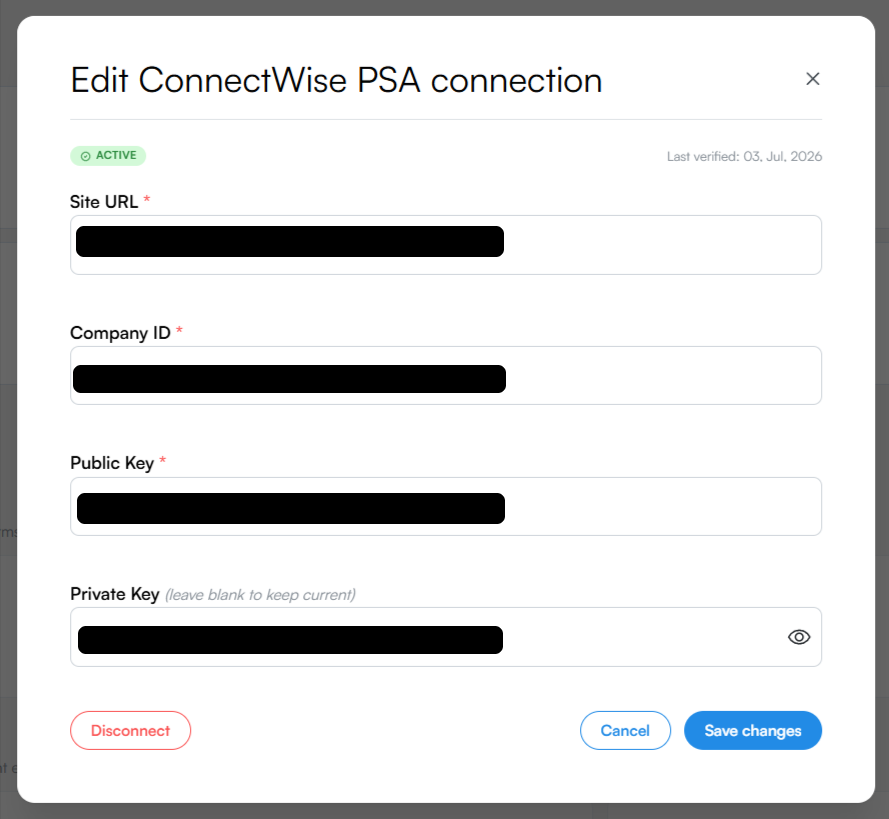
Editing an existing ConnectWise connection. Leave the Private Key field blank to keep the current value.
⚠️ Rotating the key. Create the new API key in ConnectWise first (see Get ConnectWise API Credentials), then come back here, paste the new Public Key and Private Key, and click Save changes. Inscora re-verifies the connection on save: if the new key fails, the integration stays on the previous value.
Disconnecting
Click Disconnect in the edit dialog to remove the integration. Inscora stops calling the ConnectWise API and the integration moves back into the Available list. Existing clients you imported from ConnectWise remain in Inscora; only the link is severed.
Troubleshooting
Symptom | What to check |
|---|---|
Connection fails on first save | Confirm the Company ID matches your ConnectWise login company, and that the Site URL is your actual instance address. Re-check that the Public and Private Keys were copied without leading or trailing whitespace. |
Test button reports an error after working previously | The API key may have been deleted or the API Member deactivated in ConnectWise. Create a fresh key and update it here, or follow Lost the Private Key? on the credentials page. |
Permissions error during import | The API Member's security role must grant Inquire access to Company Maintenance. Inscora uses that read access to pull your company list. See Get ConnectWise API Credentials. |