
Personal Settings
Your personal settings are accessible by clicking your name or avatar at the bottom-left of the sidebar (next to Notifications and Account). A slide-out panel opens with three tabs: Profile, Change Password, and Notifications.
These settings apply to your individual account, not to the organization. Each user on your team manages their own profile and notification preferences here.
Profile
The Profile tab lets you update your display name (First Name, Last Name) and your preferred language. These are visible to other users across the platform. Click Submit to save any changes.
Change Password
The Change Password tab lets you update your login credentials. Enter your current password, then your new password twice to confirm. Click Submit to save.
Notifications
The Notifications tab controls which email notifications you receive from Inscora. Each notification type has a toggle to turn it on or off. All notifications are enabled by default.
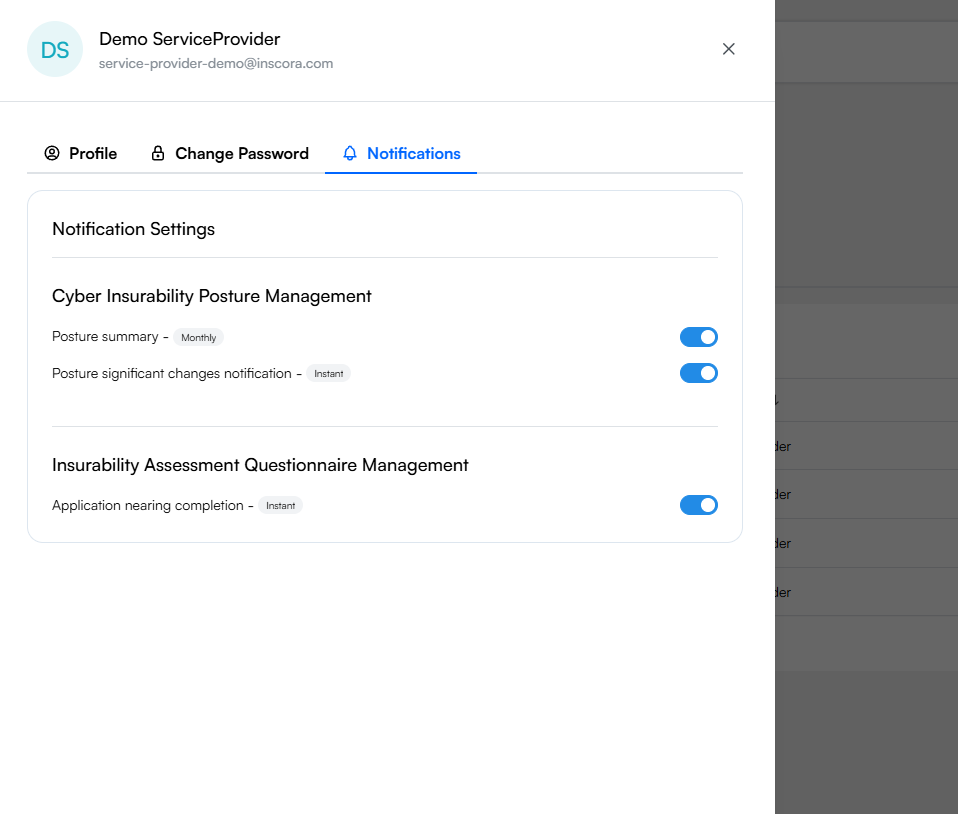
Manage your notification preferences. Each toggle can be turned on or off independently.
Service Provider Notifications
As a Service Provider, you currently receive notifications in two categories. More notification types are being added regularly.
Cyber Insurability Posture Management
Notification | Frequency | What it tells you |
|---|---|---|
Posture summary | Monthly | A regular summary of your entire client portfolio's cyber insurability posture. Gives you a snapshot of who's doing well, who needs attention, and where the biggest gaps are across your book of business. |
Posture significant changes notification | Weekly | Alerts you when a client's posture has changed significantly since the last scan. Because Inscora re-scans clients every 30 days, this notification catches meaningful drops or improvements so you can follow up promptly. |
Insurability Assessment Questionnaire Management
Notification | Frequency | What it tells you |
|---|---|---|
Application nearing completion | Weekly | Lets you know when a client's questionnaire is close to being finished (around 75% complete today). This is useful when you've invited a client to fill out their own assessment - you'll know when they're nearly done so you can review their answers, take over if needed, or assign a broker. |
💡 Why these notifications matter. Together, these notifications keep you on top of your clients' insurability without having to log in and check manually. The monthly summary gives you the big picture, the significant changes alert catches urgent shifts between scans, and the application nearing completion alert keeps the assessment workflow moving forward.
Client Notifications
Clients who log in through the Client portal have their own set of notifications. These are managed from the client's own account and are not visible here. Client notifications include alerts when an application has been created for them and reminders to complete their questionnaire.
Broker Notifications
Brokers receive a separate set of notifications through the Broker portal. Their notifications are similar to Service Provider notifications, with additional alerts for broker-specific events like being assigned to a new client.