
Digital Asset Manager
The Digital Asset Manager (DAM) is where you manage the domains and IP addresses associated with a client. These are the internet-facing assets that Inscora's insurability scan evaluates - so the DAM is effectively the scope control for the insurability scan. Add or remove assets, enable or disable them, and pick which domain is treated as the primary one.
Accessing the DAM
- Navigate to the client's page. Near the top of the page, you'll see the client's primary domain displayed.
- Click the pencil icon (edit) next to the domain name. This opens the Digital Asset Manager panel.
Clicking the domain text itself will open the website in a new tab. Make sure to click the pencil icon instead.
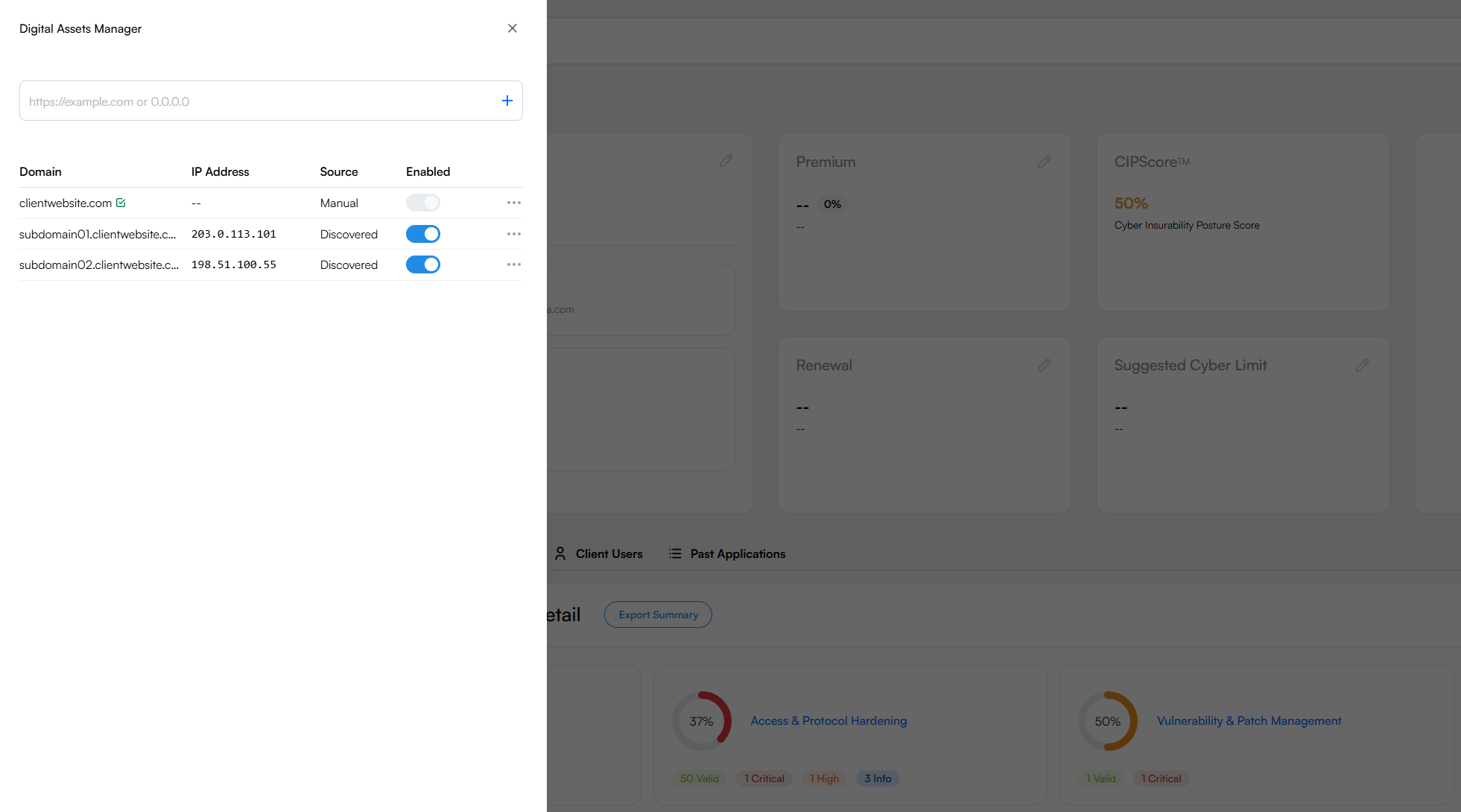
The Digital Asset Manager lists all domains and IPs associated with the client.
Understanding the Asset Table
The DAM displays assets in a table with four columns:
Column | Description |
|---|---|
Domain | The domain name or subdomain. |
IP Address | The IP address associated with the domain, or a standalone IP you've added manually. |
Source | Discovered means Inscora found the asset automatically during its discovery process. Manual means you added it yourself. |
Enabled | A toggle that controls whether the asset is included in insurability scans. Disable an asset to exclude it from scanning without deleting it. |
Managing Assets
Adding a Domain or IP
At the top of the DAM panel, there's an input field that accepts either a domain (e.g., https://example.com) or an IP address (e.g., 192.168.1.1). Type or paste the value and click the + button. The new entry appears in the table with its Source set to Manual.
Enabling and Disabling Assets
Use the Enabled toggle to include or exclude assets from future insurability scans. This is useful when a client has domains or IPs that aren't relevant to the cyber insurability assessment, for example a marketing microsite hosted by a third party.
Setting a Primary Domain
One domain is always marked as the Primary (shown with a badge icon). This is the domain displayed on the client page and used as the starting point for discovery and scanning. To change it, click the three-dot menu on the desired row and select Primary.
Deleting Assets
To remove an asset entirely, click the three-dot menu on the row and select Delete. Discovered assets can be re-added by running a new discovery scan. Manual entries will need to be re-entered if you want them back.
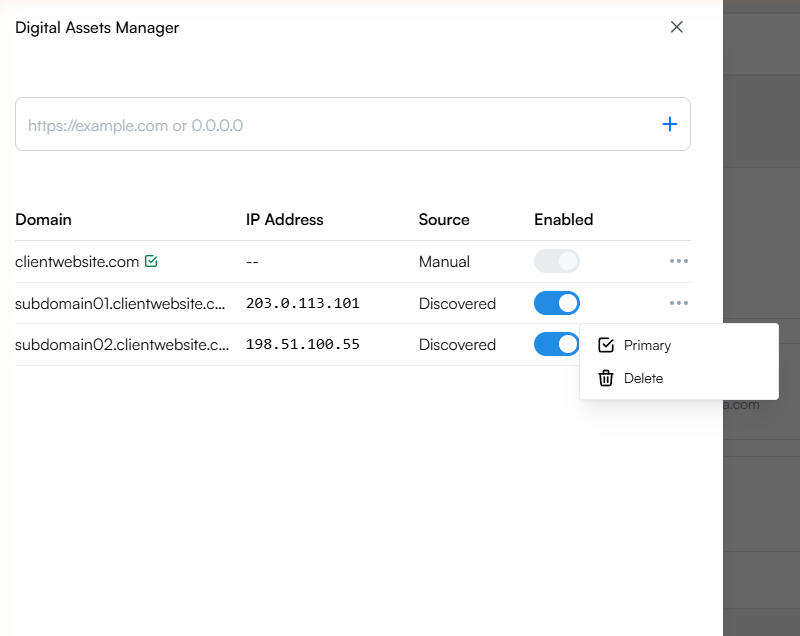
Use the three-dot menu to set a domain as Primary or delete it.
💡 Clients with multiple domains. Some clients operate under several domains, for example a parent company with subsidiaries, or an organization with separate domains for different business units. Add all relevant domains to the DAM so the insurability scan covers the full attack surface. The Source column helps you track which ones Inscora discovered automatically and which ones you added manually.
ℹ️ Discovery vs. manual entry. When you first create a client with a domain, Inscora runs an automatic discovery process that identifies associated domains, subdomains, and IP addresses. These show up as "Discovered" in the Source column. If the discovery misses something (for instance, a domain on a completely separate registrar), add it manually so it gets included in future insurability scans.
ℹ️ Changes take effect on the next scan. Edits in the DAM update the scope of the next scan. Trigger a manual scan from the client's CIPScore Detail tab if you want the new asset list reflected in the score right away; otherwise the next recurring scan will pick up the change.