
Prospecting
The Prospects view lets you manage prospects directly within Inscora and use cyber insurability as a structured way to prospect new business. It works like the Dashboard & Clients view, but it answers a different question: not "how are my clients doing" but "which of these organizations is worth a call this week, and what do I open with".
Why Prospect in Inscora?
Cyber insurability is a powerful conversation starter. If you run an insurability scan on a prospect and their CIPScore comes back low, that opens a natural discussion: their posture needs improvement, and your services (firewall management, endpoint protection, security awareness training, etc.) are how they get there. Inscora gives you the data to back up that conversation.
Instead of prospecting with a generic pitch, you can show a prospect exactly where their gaps are, what the insurability impact is, and how your services address each issue. Deep Analysis ties your service catalog directly to each insurability scan result, so every recommendation points back to something you offer.
💡 From insurability to services. A prospect with a low CIPScore is a prospect who needs your help. Use Inscora's insurability scan results and Deep Analysis to show them the specific gaps and how your services close them. Cyber insurance becomes the reason to start the conversation; your managed services become the outcome.
The Prospecting Dashboard
The top of the Prospects view is a dashboard built around one question: where is the revenue, and which prospects are worth your time right now.
The Summary Cards
Five cards run across the top. Each one has a link at the bottom that filters the list below to exactly the prospects it counted, so you can go from a number to a call list in one click.
Card | What it tells you |
|---|---|
Prospects | How many prospects you have, with a count of the ones added this month. The link filters to prospects that have never been scanned: those are the ones you can't have a data-led conversation with yet. |
Pipeline MRR | The recurring revenue sitting in your prospect base, if every prospect bought the services that would close their insurability gaps. The link filters to prospects that have gaps your catalog covers. |
Critical Posture | Prospects scoring 50 or below. These are your strongest openings: the gaps are severe enough to be an easy conversation. |
Cyber Policy Renewing ≤ 90 Days | Prospects whose current policy renews within three months, which is when they're actually shopping. A second link picks out the prospects whose renewal date you don't have yet. |
Going Cold | Prospects with no activity for 30 days or more. Worth a nudge before they lapse entirely. |
ℹ️ The card links replace your filters, they don't stack. Clicking a card's link clears whatever filters are set and applies just that one. To combine conditions, set them from the filter row under the table instead.

The summary cards. Each link filters the list below to exactly the prospects that card counted.
Pipeline MRR by Service
Below the cards, Pipeline MRR by Service ranks your five biggest revenue opportunities by service. It reads your Service Catalog, works out which prospects have a gap each offer would close, and totals what that service would bill across all of them. The amounts are monthly recurring revenue.
Click any bar to filter the list to the prospects that service would help, which turns "security awareness training is my biggest opportunity" into the specific accounts to call.
Beside it, Prospects insurability posture breaks your prospect base into insurability bands. Clicking a band filters the list to it, and the link underneath jumps straight to the prospects in a critical state.
⚠️ An empty chart usually means an empty catalog. Pipeline MRR is computed from your enabled catalog offers and their prices. If your Service Catalog has no priced, enabled offers mapped to categories, there is nothing for Inscora to project and both the chart and the Pipeline MRR card read zero.

Where the revenue sits, and how the prospect base is scoring. Clicking a bar filters the list to the prospects that service would help.
The Prospect List
The table underneath is sorted by MRR so the biggest opportunities are always on top, 25 to a page. Columns: the prospect's name and domain, their MRR, their Cyber Insurability score, when they were last scanned, their renewal date, and their premium.
A row of filters sits above it. Use them to build a call list:
Filter | Narrows to |
|---|---|
MRR | A revenue range, so you can focus on prospects worth the effort. |
CIPScore | An insurability score range. |
Scan status | Scanned or never scanned. |
Renewal | Renewing within 90 days, or with no renewal date on file. |
Services Opportunity | Prospects with gaps your catalog can close. |
Activity | Active, or going cold at 30 days or more. |
Insurability Gaps | One or more CIPScore categories the prospect is failing. |
Pipeline Services | One or more of your own services, by name. |
The search box to the right of Create Prospect searches across the table. Clear filters resets the filter row, though not the search box.
💡 A prospecting sequence that works. Filter to Renewal: within 90 days and CIPScore below 50. That's a shortlist of organizations who are shopping for cyber insurance right now and whose posture won't get them good terms. Open a prospect, run Deep Analysis on their worst validation, and lead with what it will cost them at renewal.
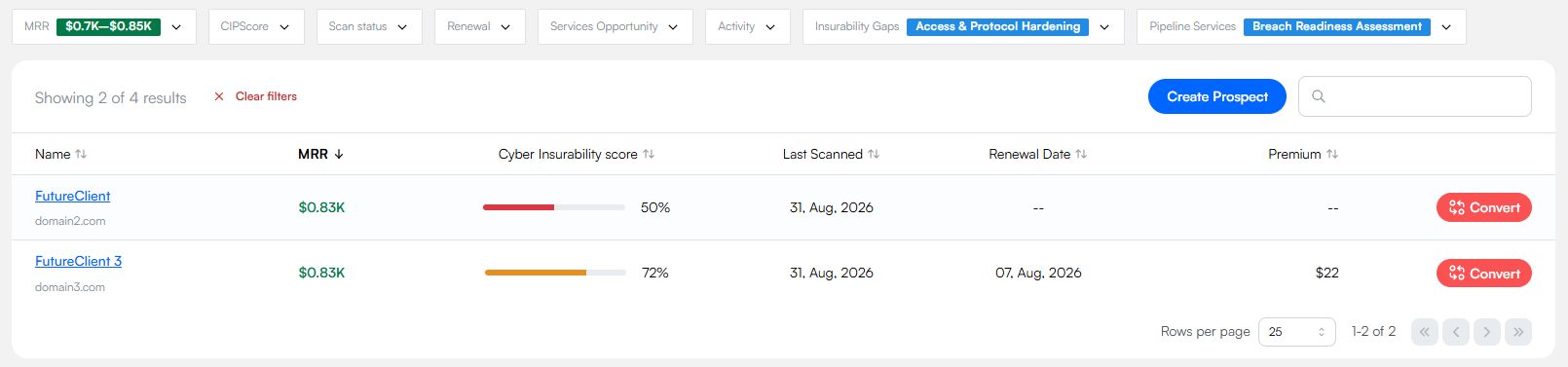
Filters combine to build a call list. The Convert button at the end of each row turns a prospect into a client.
Adding a Prospect
Adding a prospect uses the same flow as adding a client: the only difference is that you're working from the Prospects view rather than the Clients page. Click Create Prospect and give the organization a name and a website.
Inscora kicks off discovery and an insurability assessment scan automatically from that website, just like for clients, so you walk into the first conversation already armed with their CIPScore and a sense of where the gaps are.
Working with a Prospect
Prospect pages support most of the same actions as client pages: run an insurability scan, review the CIPScore, drill into category details, and open Deep Analysis to understand insurability scan results. You can also start an insurability assessment for a prospect if you want to model what a quoted policy might look like before they commit.
For detailed steps on any of these, refer to the corresponding sections in this guide: Run an Insurability Scan, Cyber Insurability Score, Create an Assessment, Invite a User, Digital Asset Manager.
Prospect vs. Client
Prospects look almost identical to clients in the platform but have a few important differences:
Aspect | Prospect | Client |
|---|---|---|
Recurring insurability scans | One-off insurability scan only: no automatic 30-day re-scanning. | Re-scanned every 30 days automatically. |
Client count | Tracked separately - prospects don't add to your client count. | Adds to your client count, which affects your license. |
Where they appear | Prospects view only. | Dashboard and client list only. |
Converting a Prospect to a Client
Once a prospect decides to work with you, convert them to a full client right from their organization page. All their insurability scan history, CIPScore data, assessment answers, and digital assets carry over - nothing is lost in the conversion.
There are two ways to do it. On the prospect's page, look in the upper-left corner: next to the Prospect label you'll see a Convert to Client button. Or convert straight from the prospect list, using the Convert button at the end of the row. Both open the same confirmation.
The organization moves out of your Prospects view and into your client list, ready to be assigned to a Service Provider and Broker like any other client.
ℹ️ Conversion only goes one way. There's no action to turn a client back into a prospect, because the conversion affects your licensing. If you convert one by mistake, contact Inscora support.
⚠️ Heads up: converting affects your client count and license. Converting a prospect to a client adds them to your client count, which counts toward your license. If you're not sure where you stand, check your usage in Organization Settings or contact Inscora support before converting.
Archiving a Prospect
For prospects that have gone cold or were created in error, use the Archive action on the prospect page to remove them from your active pipeline. Archiving keeps the underlying data intact (insurability scans, notes, assessment progress) but takes the prospect out of your day-to-day Prospects views and analytics. The same action is available on client pages: see Archiving a Client for details.