
Answering Questions
Once you've selected your questionnaires and clicked Submit (or Pre-fill with AI), you land on the question-answering view. This is where you (or your client) work through the application: enter answers, watch the severity badges update in real time, track progress across sections, and use Inscora's built-in tools to answer accurately.
Layout Overview
The view is split into two areas:
Area | What it shows |
|---|---|
Left panel: Questions | The questions for the current section. Each question includes its input field (text, toggle, checkbox, radio button, dropdown, or table) and any associated severity badge. |
Right panel: Sections | A navigation sidebar listing all sections in the application. Each section shows a progress ring indicating how many questions have been answered, plus a completion count (e.g., "3 / 8"). |
At the bottom of the question area, navigation arrows let you move between sections without using the sidebar.
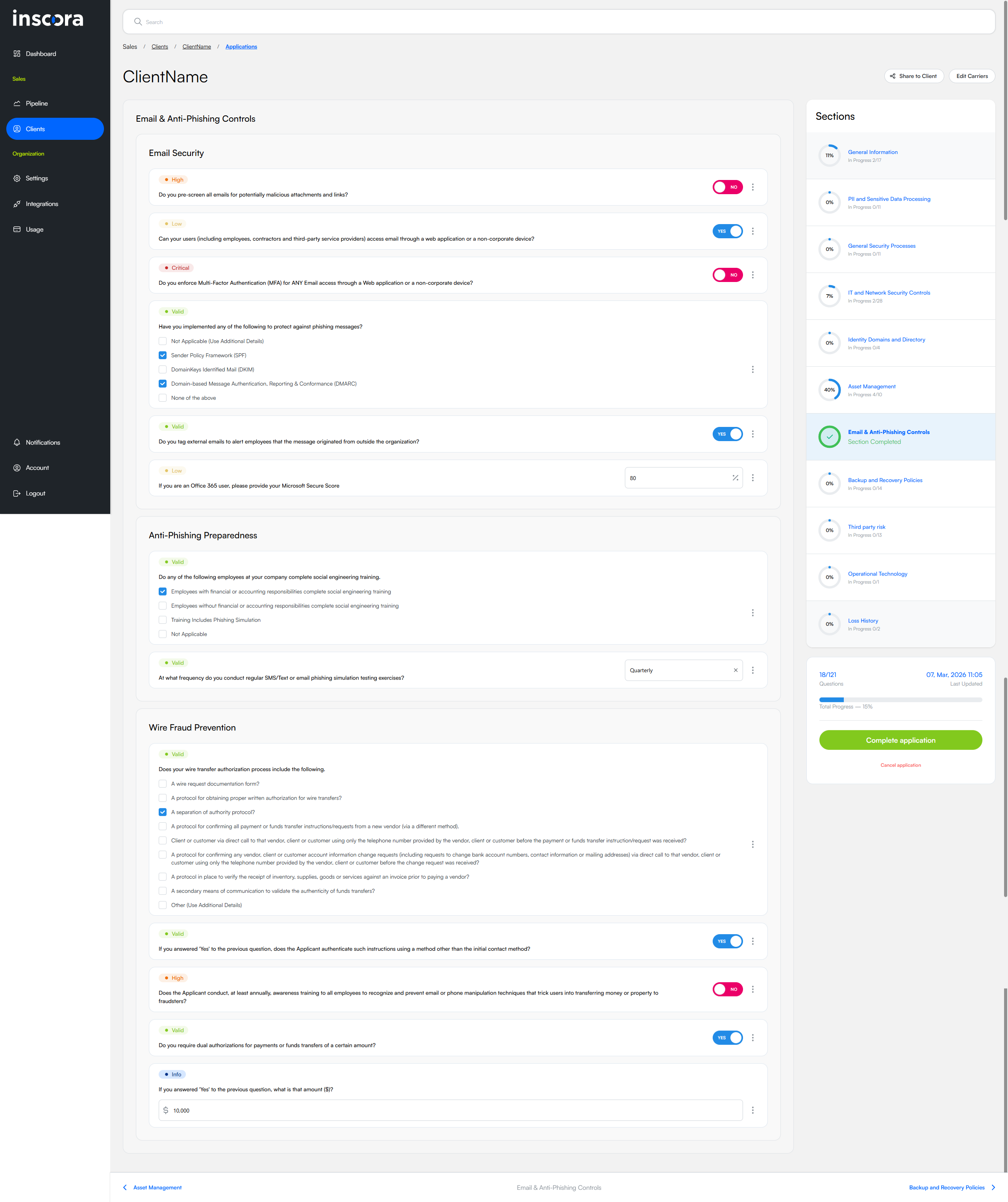
The questionnaire view: questions on the left, section navigation on the right.
Question Types
Questions come in several input formats depending on what the carrier or assessment is asking:
Input type | Used for |
|---|---|
Text field | Open-ended answers, descriptions, dollar amounts, percentages. |
Toggle (Yes/No) | Simple binary questions like "Do you enforce MFA?" |
Checkboxes | Select all that apply, e.g., which types of data your organization stores. |
Radio buttons | Choose one from a list of options. |
Dropdown | Select one option from a longer list. |
Table | Structured data entry, such as listing policies or coverage details. |
Severity Badges
Every answer is evaluated in real time and assigned a severity badge. These badges show how the answer affects your client's cyber insurability posture and feed directly into the CIPScore.
Badge | Meaning |
|---|---|
🔴 Critical | A serious gap that will very likely raise flags with underwriters. Needs immediate attention. |
🟠 High | A notable concern that could impact insurability or premium pricing. |
🟡 Medium | A moderate concern worth noting. May prompt follow-up questions from underwriters. |
🟤 Low | A minor observation. Unlikely to impact the application outcome. |
🟢 Valid | The answer meets or exceeds expectations. Positive signal for insurability. |
🔵 Info | Informational only. Recorded for context but does not impact the score. |
Badges appear next to each answered question. As you work through the application, you can see at a glance which areas are strong and which need attention before submitting.
Per-Question Actions
Every question has a three-dot menu that gives you access to four tools. These help you answer accurately and collaborate with your team and clients.
Additional Details
Opens a rich text editor directly below the question where you can add context or supporting information that the standard answer field doesn't capture. For example, if a question asks "Do you have an incident response plan?" and the answer is "Yes," you might use Additional Details to explain the plan's scope, when it was last tested, or any exceptions.
This information is transmitted to the underwriter (via the broker) along with the formal answers, giving them a fuller picture.
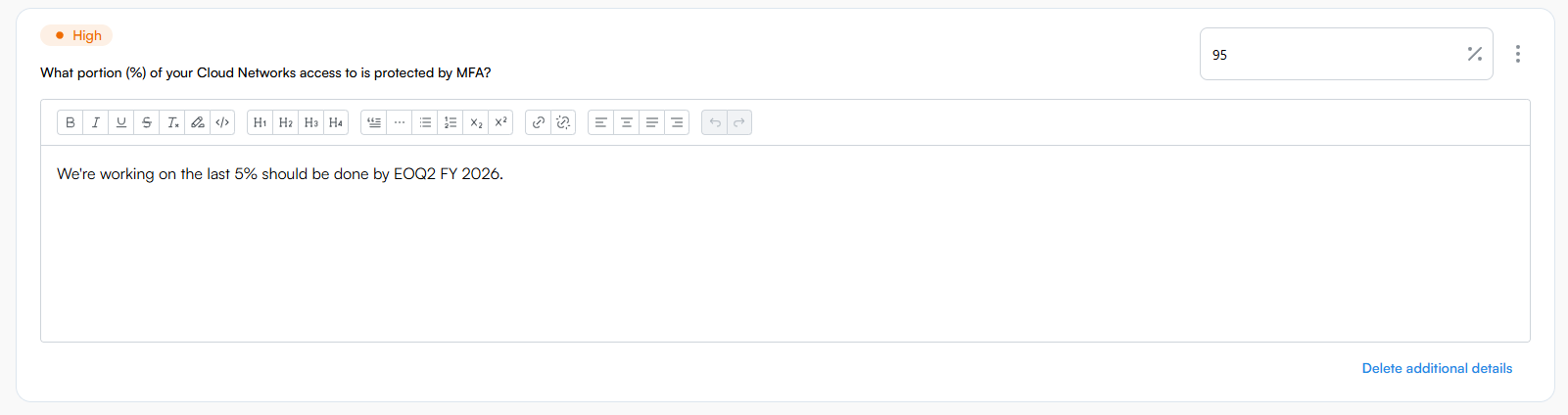
Additional details let you add context to any answer.
Explain
The Explain feature provides AI-generated guidance to help you (or your client) understand and answer the question well. When activated, it opens a panel with the following sections:
Section | What it provides |
|---|---|
Context | Why this question is being asked and what underwriters are looking for. |
Sample Answer | An example of a strong answer to use as a reference. |
Additional Data | What supplementary information or evidence might strengthen the answer. |
What to do if you don't know | Practical steps for when the person answering doesn't have the information at hand. |
Traps and Pitfalls | Common mistakes or misleading answer patterns to avoid. |
Supplementary References | Links to industry standards, frameworks, or resources related to the question. |
Terms Explained | Definitions of technical or insurance-specific terms used in the question. |
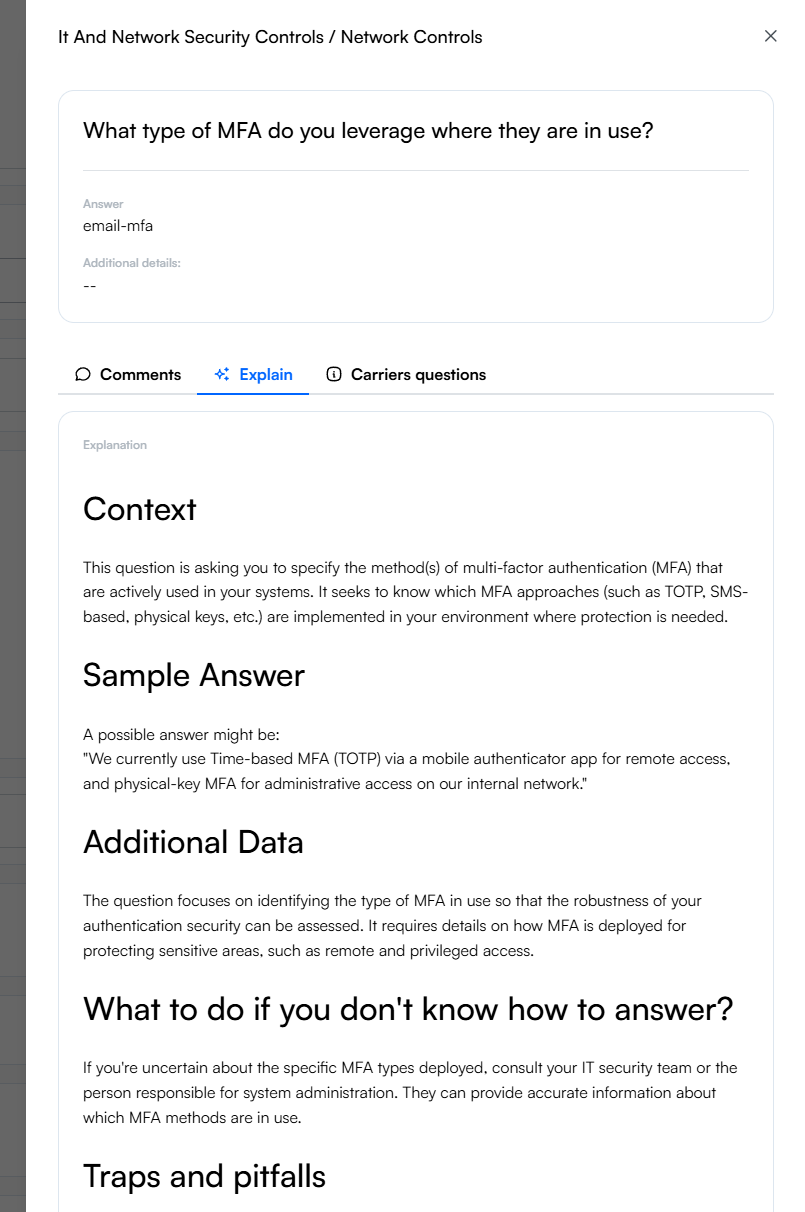
The Explain feature provides AI-powered guidance for each question.
💡 Explain as a training tool. The Explain feature is available to Service Providers, brokers, and clients. It works well as a training tool: clients who aren't familiar with cyber insurance terminology can use it to understand what's being asked and why it matters, without needing to call you for every question.
ℹ️ Explain here, Deep Analysis on the scan. Inscora offers AI-generated guidance in two places, under two names. Here, on questionnaire questions, it is called Explain and it guides whoever is answering toward a strong, defensible response. On insurability validations in the CIPScore detail view it is called Deep Analysis, and it interprets what Inscora detected from the outside and how to remediate it. Used together they cover the outside-in and inside-out view of a client's posture: see Explain and Deep Analysis for the side-by-side.
Comments
Opens an inline comment thread on the question. Comments let Service Providers, brokers, and clients collaborate directly: leave notes, ask for clarification, or flag concerns on specific questions.
When someone is mentioned in a comment, they receive a notification. Questions with active comments show an indicator so you can spot where conversations are happening.
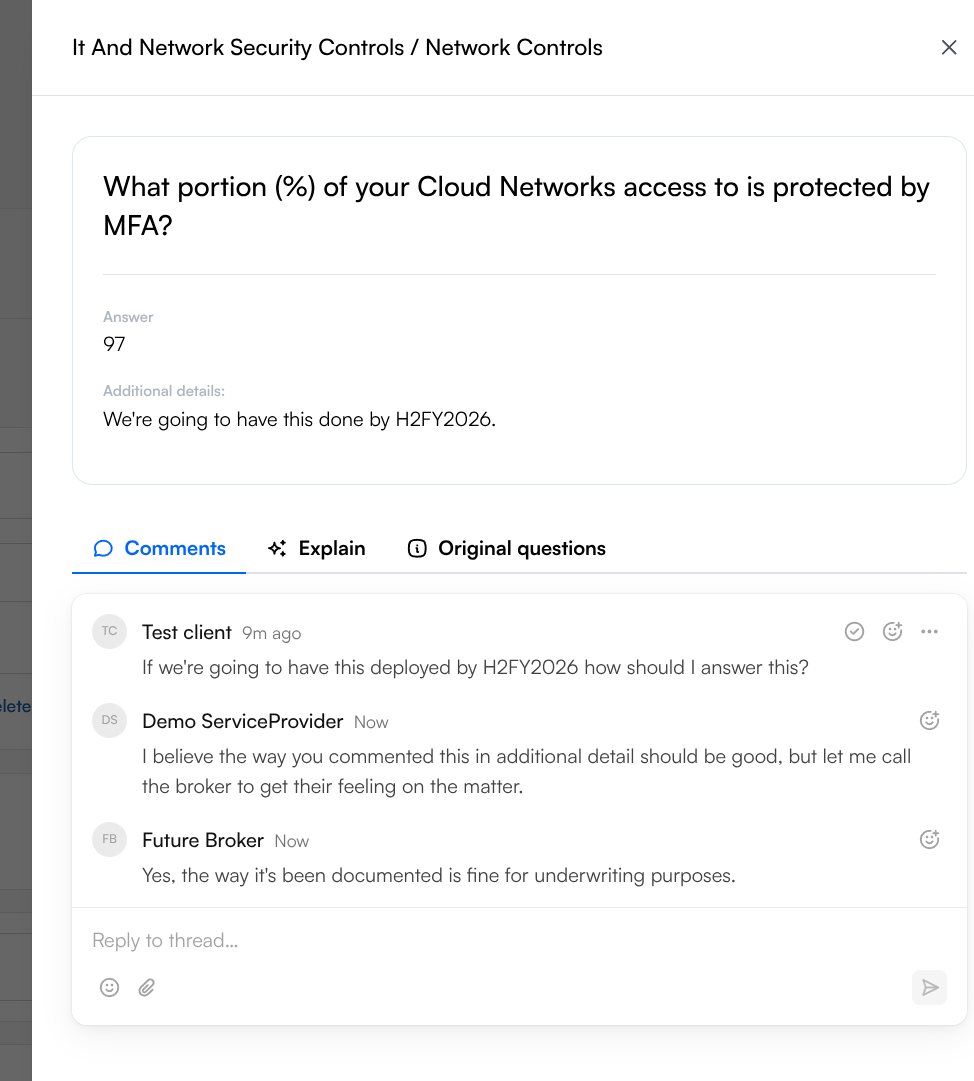
Comments allow inline collaboration between Service Provider, broker, and client on individual questions.
Original Carrier Questions
Because Inscora unifies and deduplicates questions across carriers, the wording you see in the questionnaire may differ slightly from the original carrier form. The Original Carrier Questions option shows you the exact verbatim wording from each carrier's PDF for that question.
This is useful when you want to check how a specific carrier phrased something, for instance if you're unsure whether Inscora's unified version captures a particular nuance from the original.
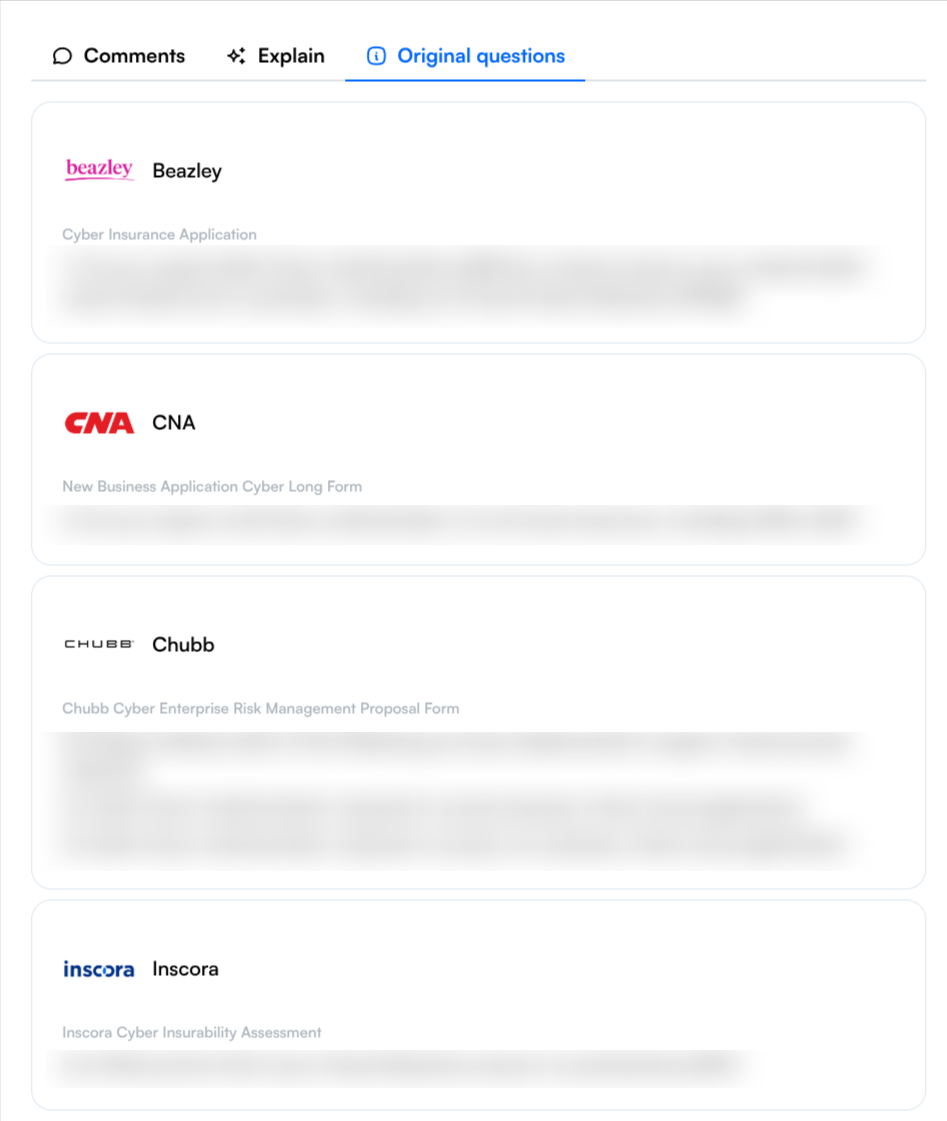
View the original verbatim wording from each carrier's questionnaire.
Editing Carrier Selection
At any point while working on the application, you can click the Edit Carriers button to return to the Select Questionnaire modal. Add or remove carrier questionnaires without losing your existing answers. New questions will appear unanswered; removed questions won't delete answers you've already provided (they're kept in case you add the questionnaire back).
Section Navigation
The Sections panel on the right serves as your progress tracker. Each section shows:
- A progress ring that fills as you complete questions.
- A completion count (e.g., "5 / 12") showing answered vs. total questions.
- A checkmark when all questions in the section are answered.
Click any section name to jump directly to it, or use the arrow buttons at the bottom of the question area to move through sections in order. Sections are consistent across all selected questionnaires: Inscora organizes questions into logical groups regardless of which carriers they came from.