
Run an Insurability Scan
The insurability scan evaluates your client's internet-facing assets and produces a Cyber Insurability Posture Score (CIPScore): a rating that shows how ready they are for cyber insurance. Inscora runs an insurability scan automatically at three points: when you first create a client, every 30 days after that, and whenever you trigger a manual scan.
Automatic Scan on Client Creation
When you create a new client (see Add Clients), Inscora runs discovery and an insurability scan from the domain you provided. No manual action needed; results show up on the client page as the scan completes.
Running a Manual Scan
To re-scan a client (for example, after they've made security improvements):
- Navigate to the client's page and scroll down to the CIPScore Detail tab.
- Click the "Start Scan" button in the top-right of the CIPScore Detail section.
- A "Launch Scan" confirmation dialog will appear, showing the domain that discovery and scanning will be initiated from. Click "Scan" to proceed, or "Cancel" to abort.
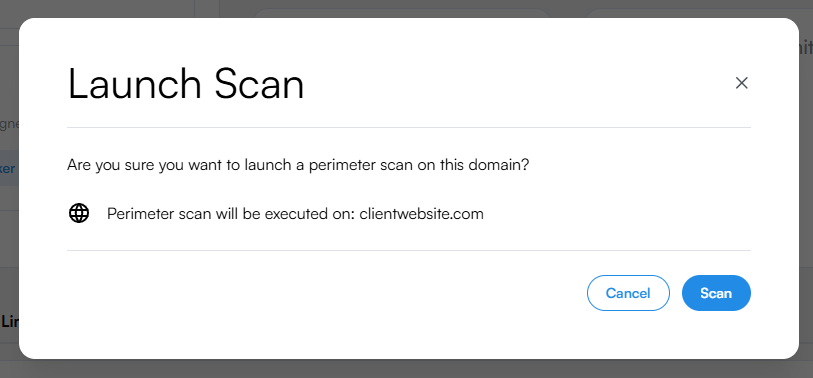
The Launch Scan confirmation dialog.
- The "Start Scan" button will change to indicate the scan is in progress. Results will appear automatically when the scan completes.

Scan in progress. The button changes to "Cancel scan" and an indicator appears.
- Hover the "Scan in progress" button at any time to see exactly where the scan is. A small Scan Progress popover appears showing each step the scan goes through and which one is currently running. The five steps are:
- Queued for scanning - the scan is in the queue, waiting to be picked up by Inscora's scanning engine.
- Discovering all scannable assets - building the full asset inventory from the client's domains, expanding outward to related domains, subdomains, and the underlying assets behind them.
- Running Insurability Scan on assets - actively probing the discovered assets for insurability controls validation.
- Processing results into global CIPScore - aggregating insurability scan results into category scores.
- Finalizing controls & services knowledge - last-mile enrichment before results appear.
The popover header also shows a count, e.g. "1 of 5 steps completed", so you can tell at a glance how far along the scan is.
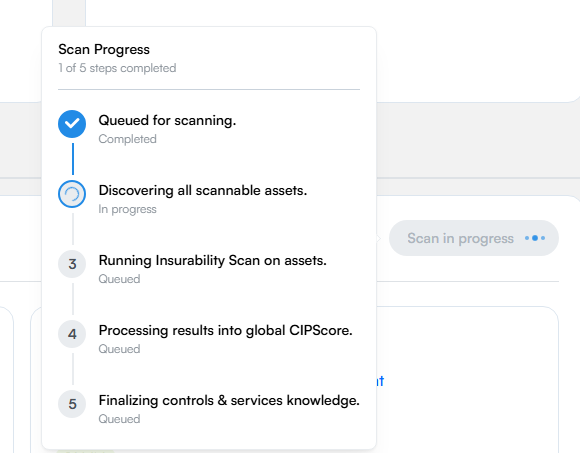
Hover the in-progress button to see exactly which step the scan is on.
ℹ️ How long does an insurability scan take? Usually fast, but it can take a few minutes depending on how many internet-facing assets your client has. You don't need to stay on the page; results will be ready when you come back, and the hover popover above tells you which step is currently running if you want to check in.
Recurring Scans
Inscora automatically re-scans every client every 30 days. This keeps CIPScores current without any manual effort on your part. When a recurring scan completes, the CIPScore and all category validations are updated with the latest data.
Because scanning is continuous, you don't need to wait until a renewal date is approaching to address gaps. As insurer requirements evolve or new issues surface, you and your client can make improvements throughout the year and see the results reflected in the CIPScore well before the renewal window opens.
You can always trigger a manual scan on top of the 30-day cycle, for example after a client has addressed issues and you want to verify the improvements right away. Manual scans reset the 30-day timer.
💡 Notifications for scan changes. You can configure notifications to alert you when a recurring scan detects significant changes in a client's posture. See Personal Settings to manage your notification preferences.
Reviewing the Results
Once the scan completes, the CIPScore Detail section displays a breakdown of your client's cyber insurability posture across several categories. Each category receives its own score and validation summary.
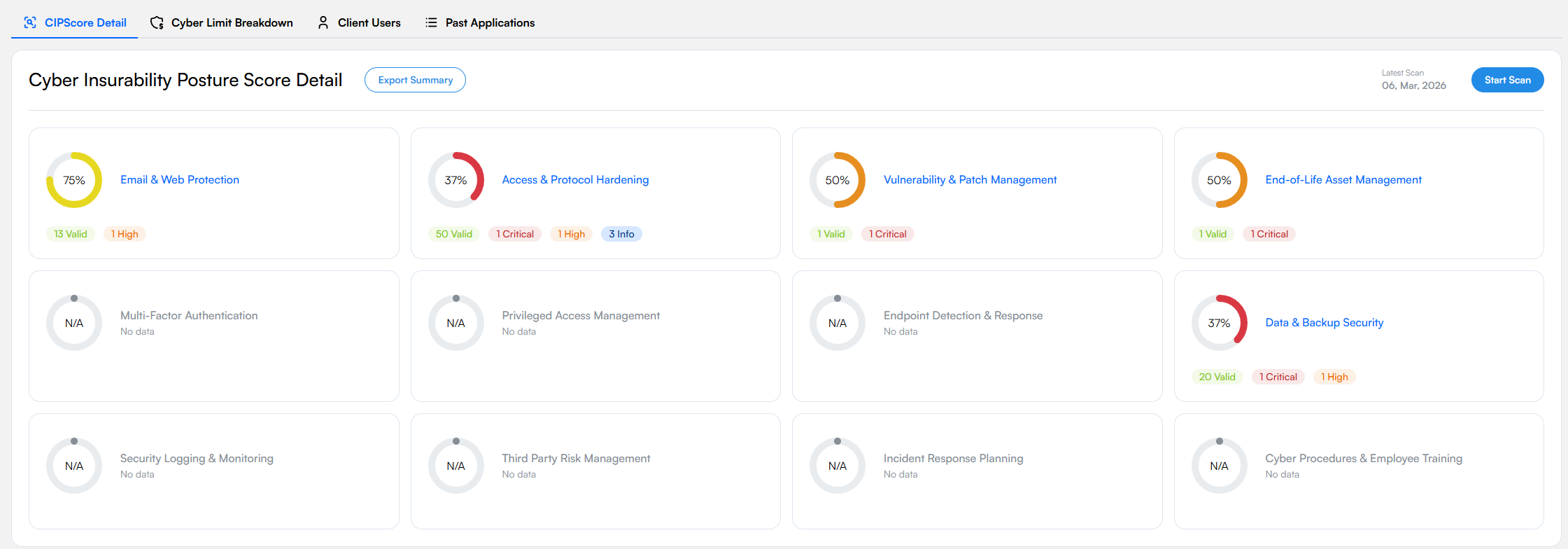
CIPScore breakdown by security category.
For a complete walkthrough of what each category means, how scores are calculated, and how to interpret insurability scan results, see Understanding the Cyber Insurability Posture Score.
💡 Use Deep Analysis to understand insurability scan results. Every validation in the CIPScore detail view has a Deep Analysis toggle. Open it to get an AI-generated briefing tailored to your client's specific situation: what was found, why it matters for insurability, how to fix it, and how your services connect to the solution. It's the most complete way to understand any insurability scan result.
Exporting Results
Click the "Export Summary" button at the top of the CIPScore Detail section to generate a downloadable report of the insurability scan results. This is useful for sharing with clients, brokers, or for your own records. The report language matches the client's Communication Language setting (English or French), which you can change via the pencil icon at the top-right of the client card. For a detailed walkthrough of the export options and what the report contains, see Export Summary in the CIPScore detail guide.