
Deep Analysis
Every validation group in the CIPScore detail view has a Deep Analysis toggle. Open it and Inscora writes an AI-generated briefing for that validation: what was found, why it matters for insurability, how to fix it, and how your services connect to the solution.
💡 Deep Analysis is the best way to understand insurability scan results. Whenever you want to understand what an insurability validation means, how it affects your client's posture, or what to do about it, open Deep Analysis directly on that validation. Each briefing is generated from your client's actual data and is always up to date with their latest scan. It gives you the full context: the technical meaning, the insurability impact, real-world incident references, step-by-step remediation, and how your own services connect to the solution.
ℹ️ Every briefing is unique. Deep Analysis is not a static template. Each briefing is written for the specific insurability scan results of that client on that validation, so two clients with different results for the same check get different content.
Opening Deep Analysis
Navigate to any CIPScore category detail page (for example, Email & Web Protection or Access & Protocol Hardening). Each validation group, such as "Insecure Remote Access Technologies Not in Use", carries a Deep Analysis toggle next to its name. Open it and the briefing appears directly under that validation, so you keep the rest of the results in view while you read. Collapse at the end of the briefing closes it again.
The validation's own row shows a severity tally on the right, for example 49 Valid and 1 Critical, so you can read the result at a glance without opening it.
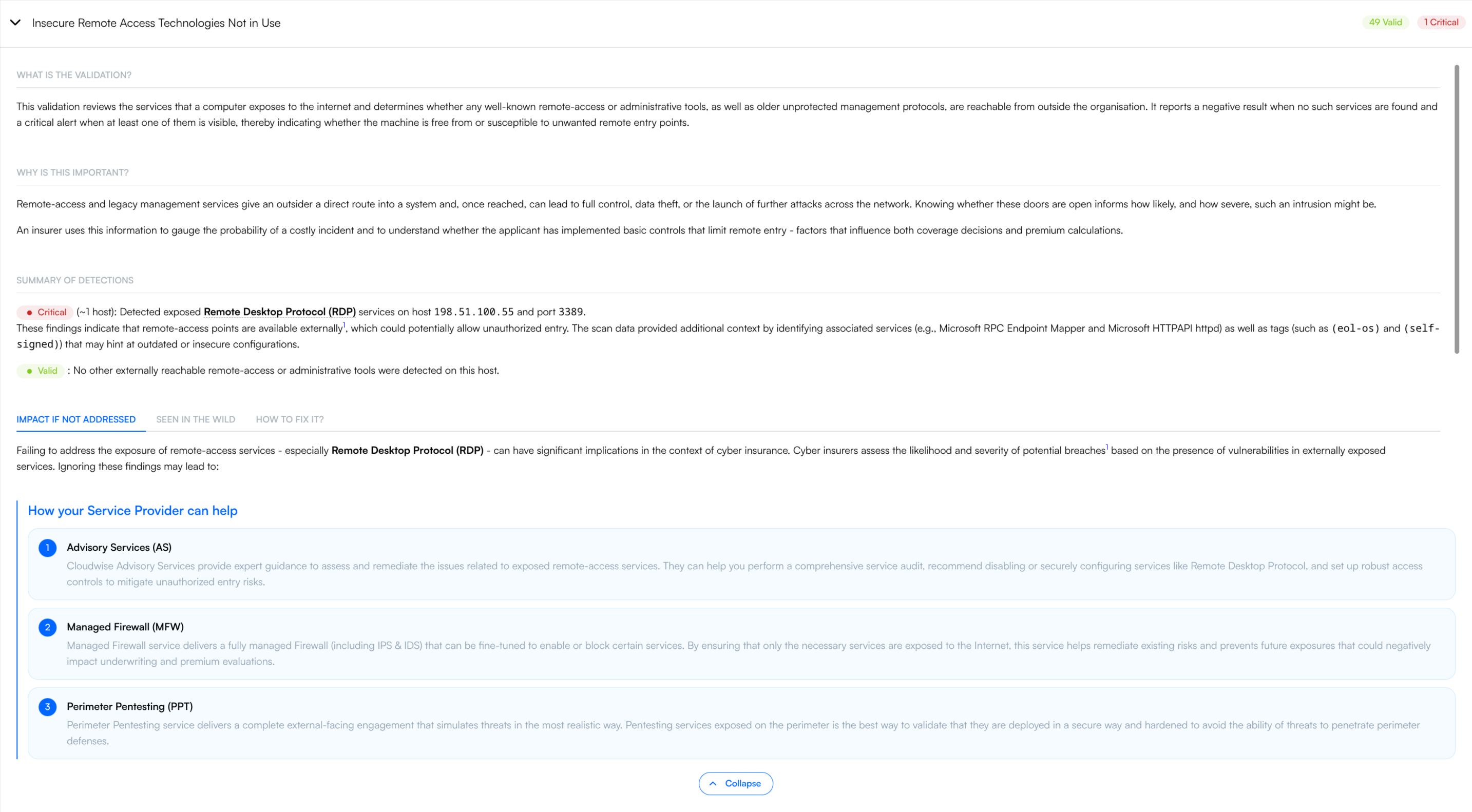
A Deep Analysis briefing expanded under a validation: the three leading sections, the tab bar, and the numbered service cards at the bottom.
What's Inside a Briefing
A briefing has three parts: three leading sections, a set of tabs, and the service recommendations at the bottom.
The Leading Sections
These three always appear, in this order.
1. What is the validation?
A plain-language explanation of what this validation checks, written so that both a security engineer and a business owner can follow it. For a reference of all validations, see the individual category pages (Email & Web Protection, Access & Protocol Hardening, Vulnerability & Patch Management, End-of-Life Asset Management, Data & Backup Security).
2. Why is this important?
Why this validation matters for cyber insurability specifically, not just cybersecurity in general. It connects the technical check to what insurers look at when underwriting.
3. Summary of detections
What the insurability scan actually found for this client on this validation, with each entry carrying a severity pill. Inscora does both positive and negative validation, so this doesn't just flag problems; it also confirms what's working. You might see entries like:
Severity | What it means here |
|---|---|
🔴 Critical | A significant issue was found, e.g. an exposed RDP service on a specific host and port. |
🟢 Valid | The check passed. The expected control is in place or the insecure service was not detected. |
You get the full picture: not just what's wrong, but also what's right.
The Tabs
Below the leading sections, three tabs hold the rest of the briefing.
Tab | What's in it |
|---|---|
Impact if not addressed | The consequences of leaving the result alone, framed three ways: how the gap changes the client's risk profile, how it may affect premiums, terms and coverage, and whether persistent exposure could be read as a lack of basic cyber hygiene and lead to a refusal to underwrite. Useful with clients who don't respond to technical risk language but do understand financial consequences. |
Seen in the wild | Real-world cyber incidents that exploited a similar weakness. These are not generic examples: Inscora picks incidents relevant to the specific exposure detected for this client, each with a short description and a link to a public source. This is what shows a client the risk is not theoretical. |
How to fix it? | Numbered remediation steps, specific to this result. A shared reference for you and the client: what needs to happen, whether that's straightforward (disable an unused service) or involved (redesign remote access architecture). |
💡 Copy a section straight into an e-mail or ticket. Each section can be copied on its own. Use it to lift the remediation steps, or the insurability impact, into a client e-mail, a ticket, or a change request without dragging a selection across the page.
How Your Service Provider Can Help
The bottom section is the one that turns an insurability scan result into a conversation. Inscora matches the result to relevant offers from your own service catalog and lays them out as numbered service cards, so the recommendations are tied to services you actually sell rather than generic advice.
In the example above, an exposed RDP service surfaced three of Cloudwise's own offers: Advisory Services, Managed Firewall, and Perimeter Pentesting, each card explaining how that service addresses the gap.
💡 Connecting insurability scan results to your services. This section is powered by your Service Catalog. Inscora reads the services and capabilities you've described and connects them to each validation result. Every briefing positions your services in the context of a real, evidenced client need, which makes it easy to have productive conversations about next steps.
ℹ️ Service catalog setup. To get the most out of this, make sure your service catalog is complete and up to date in your organization settings. The richer your catalog descriptions, the more precisely Inscora can match your services to client insurability scan results.
Terms Explained
Technical terms, acronyms and protocols in a briefing are explained for you. Hover one to see a short definition, so you don't have to look up "NLA" or "DKIM" to follow the rest of the sentence. Supporting sources work the same way: hover the marker to see the reference behind a claim, with a link out where there is one.
Explain and Deep Analysis
Inscora generates this kind of guidance in two places, under two names. The page you're reading covers Deep Analysis, on scan validations. The second is Explain, on the cyber insurability assessment, with its own purpose and content layout. The table below shows how they compare:
Name | Where | Based on | Read more |
|---|---|---|---|
Deep Analysis | CIPScore category detail pages, on each insurability validation | Insurability scan results (the insurability validations from the automated scan). | This page (above). |
Explain | Cyber insurability assessment, on every question | Client responses to assessment questions (self-reported state of internal controls). |
Both are AI-generated, but for different purposes: Deep Analysis interprets what Inscora detected from the outside, while Explain interprets what the client reported from the inside. Together, they build the full picture, so it's worth knowing both.